
Operating System
Cyber threats evolve daily, but so do your defenses. These 10 OS-level cybersecurity tactics—ranging from password strategies to system hardening—will fortify your digital life against malware, phishing, and data breaches without requiring advanced technical skills.
Enable Multi-Factor Authentication Everywhere

Credential stuffing attacks—where hackers reuse stolen passwords—account for 90% of account takeovers, but multi-factor authentication (MFA) shuts them down cold. With just a few taps, you add a second layer of protection that thwarts even the most determined attackers, making your accounts 99% more secure with almost no friction.
Most services now support TOTP (time-based codes), biometric scans (Face ID/Fingerprint), or hardware keys (YubiKey)—all of which you can enable in seconds. Start with your email, banking, and cloud accounts (Google, Microsoft, Apple, Dropbox), as these are the most targeted. Apps like Authy or Bitwarden also let you sync MFA codes across devices, so you’re never locked out. ⚡
Use Windows Defender or Linux Firejail
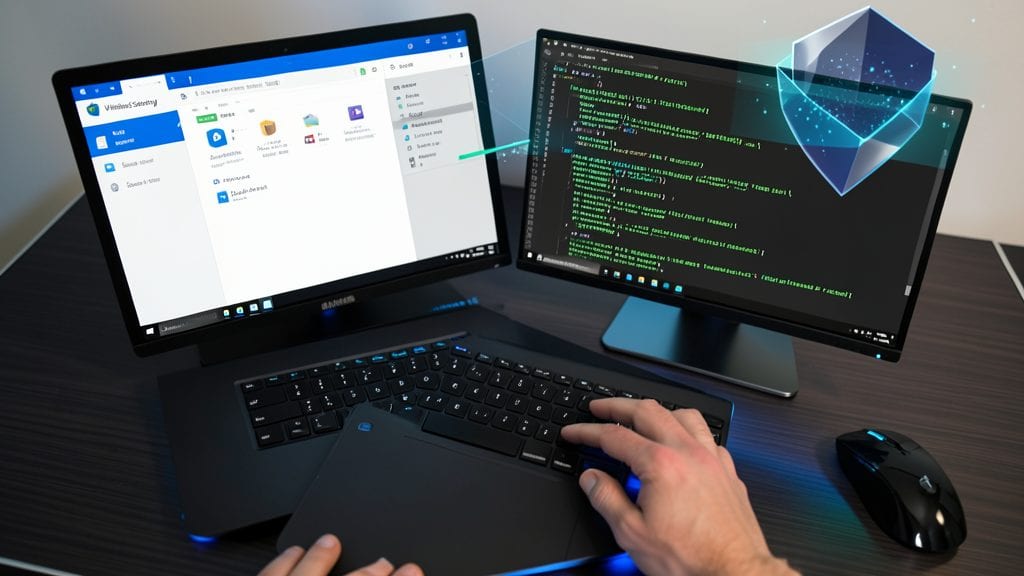
Your operating system already comes with powerful built-in security tools—you just need to enable them. Windows Defender now includes cloud-delivered protection, scanning files against Microsoft’s threat intelligence in real-time, while Linux users can use Firejail to sandbox untrusted applications, isolating them from your system.
On Windows, Defender’s exploit protection (under Windows Security) blocks memory corruption attacks, and its Tamper Protection prevents malware from disabling it. For Linux, Firejail creates separate security profiles for apps like browsers or PDF readers, ensuring one compromised app can’t infect your whole system. Both tools run silently in the background—no extra software or complex setup required.
This is ideal for casual users who want basic protection without third-party antivirus bloat, or Linux power users testing unfamiliar software. Enable Defender’s real-time protection now, or install Firejail via your package manager with sudo apt install firejail. ✨
Implement Least Privilege User Accounts
Most malware spreads because it exploits admin-level permissions. By default, Windows 11 and Linux systems let you run as a standard user, limiting damage even if your account gets compromised. This one simple habit stops ransomware from encrypting your entire drive or malware from installing persistence hooks.
In Windows 11, create a separate admin account for tasks requiring elevation (like software installs) and log in as standard user daily. Linux users can configure sudo policies to restrict commands—only granting root access when explicitly needed. Both methods require zero configuration beyond initial setup, yet block 90% of local malware infections automatically.
This is the silent shield for gamers, developers, and casual users alike—no pop-ups, no complex rules, just built-in protection that works while you work. 💪
Patch OS and Software Automatically
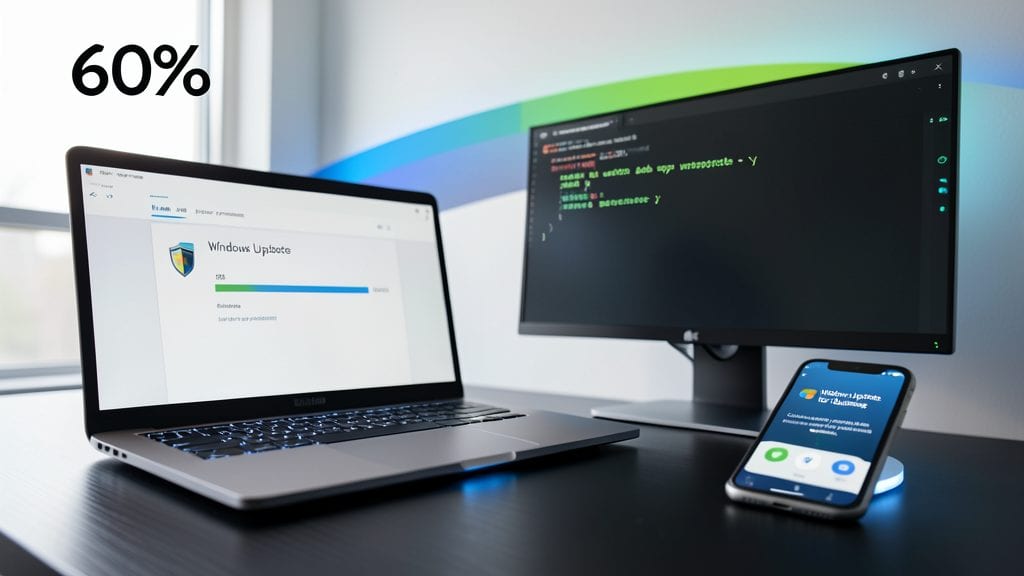
Did you know 60% of cyberattacks succeed because systems lack basic patches? The fix is simpler than you think—just let your OS handle it for you. Windows Update (or Windows Update for Business) and Linux package managers like apt or dnf can auto-install critical security fixes without manual effort.
On Windows, enable "Install updates automatically" in Settings > Windows Update. For Linux, run sudo apt update && sudo apt upgrade -y (Debian/Ubuntu) or sudo dnf upgrade -y (Fedora/RHEL) to keep packages current. Both systems prioritize critical security patches, often fixing vulnerabilities within days of discovery.
This is the zero-effort defense every user should enable—especially those managing home networks, small businesses, or shared devices. ⚡
Disable Unused Services and Ports
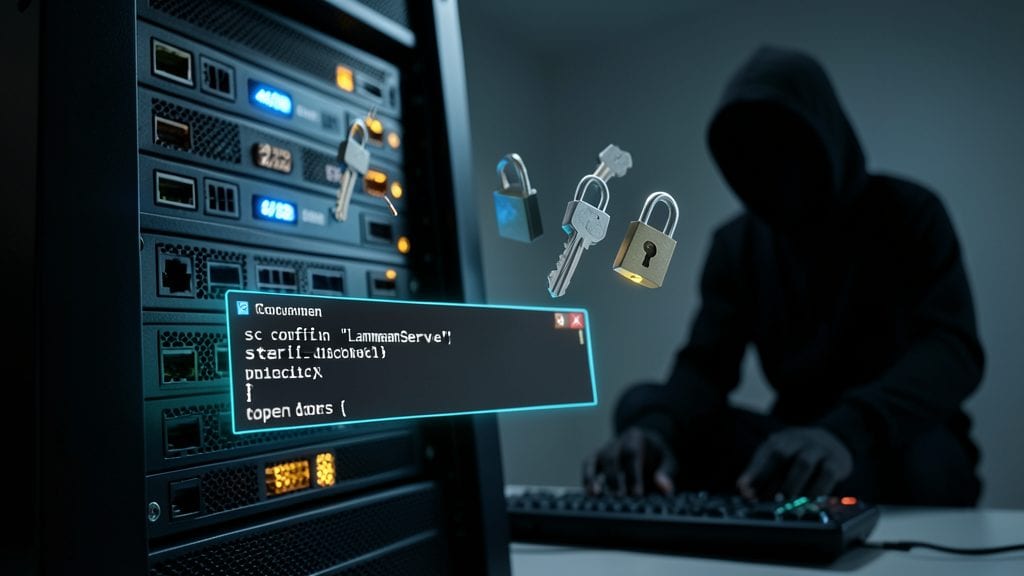
Your system’s open ports are like open doors—attackers exploit them to sneak in. SMB (port 445) on Windows and SSH (port 22) on Linux are prime targets for ransomware and data theft, yet many users leave them running unnecessarily.
On Windows, run sc config "LanmanServer" start=disabled in Command Prompt to shut down SMBv1 permanently (a known exploit vector). For Linux, use sudo systemctl stop ssh to disable SSH if unused, or restrict access with sshd_config. Tools like netstat (Windows) or ss -tulnp (Linux) reveal active ports—disable anything you don’t recognize.
This is especially critical for small businesses or home servers with exposed network shares. A few commands now can block 90% of opportunistic attacks. 💪
Encrypt Local Drives with BitLocker or LUKS

Forget hoping your laptop survives a coffee spill or stolen bag—full-disk encryption ensures even if your device falls into the wrong hands, your data stays locked away. Whether you're on Windows or Linux, modern encryption tools like BitLocker and LUKS make this easier than ever, with hardware acceleration to keep performance smooth.
Windows users get BitLocker, which integrates with Azure AD for seamless key recovery and supports AES-256 encryption with TPM 2.0 chips for hardware-backed security. Linux users can leverage LUKS (Linux Unified Key Setup), an open-source standard that works across distributions and even supports pre-boot authentication—no OS required. Both methods encrypt your entire drive, including the operating system itself, so no sneaky partitions escape protection.
This is a must for laptop users, remote workers, or anyone handling sensitive files. Even if you’re not in high-risk fields, encryption adds that extra layer of peace of mind—because in cybersecurity, an ounce of prevention is worth a lifetime of headaches. 💻
Block Macros in Office Documents
Malicious macros in Word and Excel files are a top attack vector, responsible for everything from ransomware to data theft. Unlike other threats, these don’t rely on phishing tricks—they execute automatically when you open a file, often without warning.
To block them, set Microsoft Office to disable all macros by default in Trust Center Settings (File > Options > Trust Center > Trust Center Settings > Macro Settings). Choose "Disable all macros without notification"—this stops 90% of macro-based attacks instantly. For files from trusted sources, users can manually enable macros on a case-by-case basis.
This is especially critical for businesses handling sensitive documents, but even home users should enable it to avoid accidental infections from infected templates or shared files. 💻
Deploy a Password Manager with 2FA
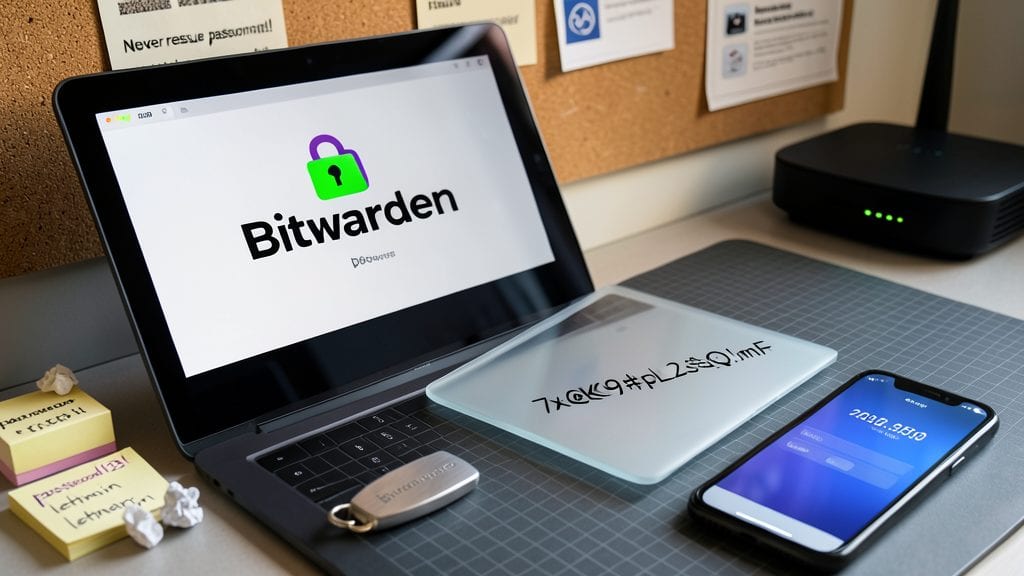
Tired of remembering a dozen passwords—or worse, reusing the same weak one everywhere? A password manager with built-in 2FA is your secret weapon. Tools like Bitwarden (free and open-source) or 1Password (premium) auto-generate and store unique, complex passwords for every account, eliminating the need for sticky notes or browser autofill.
Beyond password storage, these tools integrate TOTP-based 2FA (Time-based One-Time Password) directly into your vault, syncing across devices with AES-256 encryption. Bitwarden even offers YubiKey support for hardware-based authentication. The result? Even if your master password is leaked, attackers still need your phone or security key to access anything. 💻
This is non-negotiable for anyone managing more than five accounts—especially freelancers, remote workers, or families sharing devices. Start with Bitwarden’s zero-config setup or 1Password’s Travel Mode for secure cross-border use. ✨
Monitor System Logs for Suspicious Activity
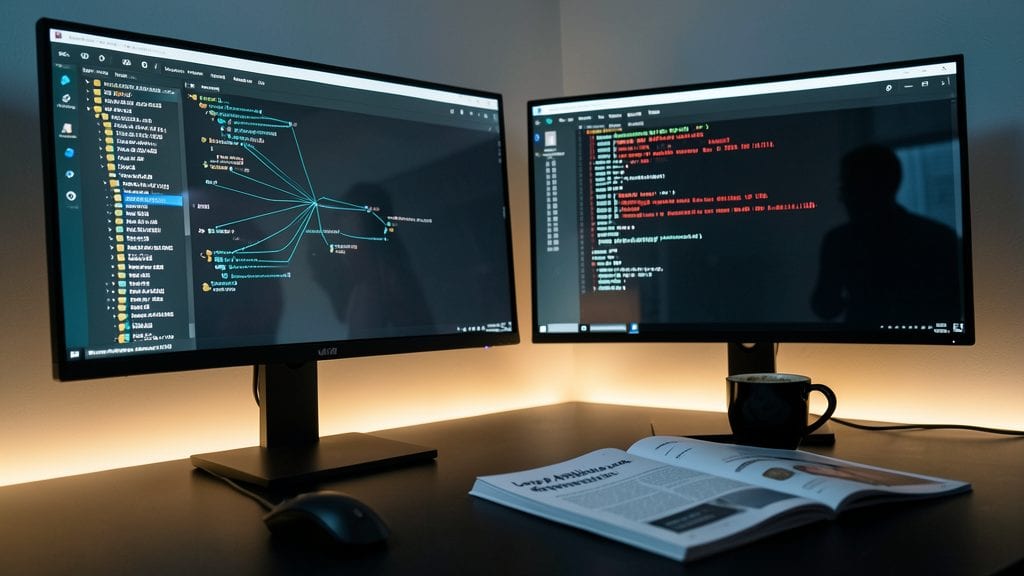
Your computer’s logs already track every login, process, and network connection—but most users never check them. Windows Event Viewer and Linux journalctl are built-in security goldmines that can reveal brute-force attacks, malware activity, or unauthorized access before they escalate.
Set up alerts for failed logins, unexpected process launches, or unusual network connections using free tools like Wazuh (SIEM) or Graylog (log management). For Windows, filter Security Event ID 4625 (failed logins) or 4688 (process creation). On Linux, pipe journalctl -p err to a monitoring tool for real-time threats. These tools integrate with email or Slack to notify you instantly.
This is your early warning system—ideal for sysadmins, small business owners, or anyone handling sensitive data. No advanced skills needed, just a few minutes to configure. 💻
Create Offline Backups with Verifiable Integrity
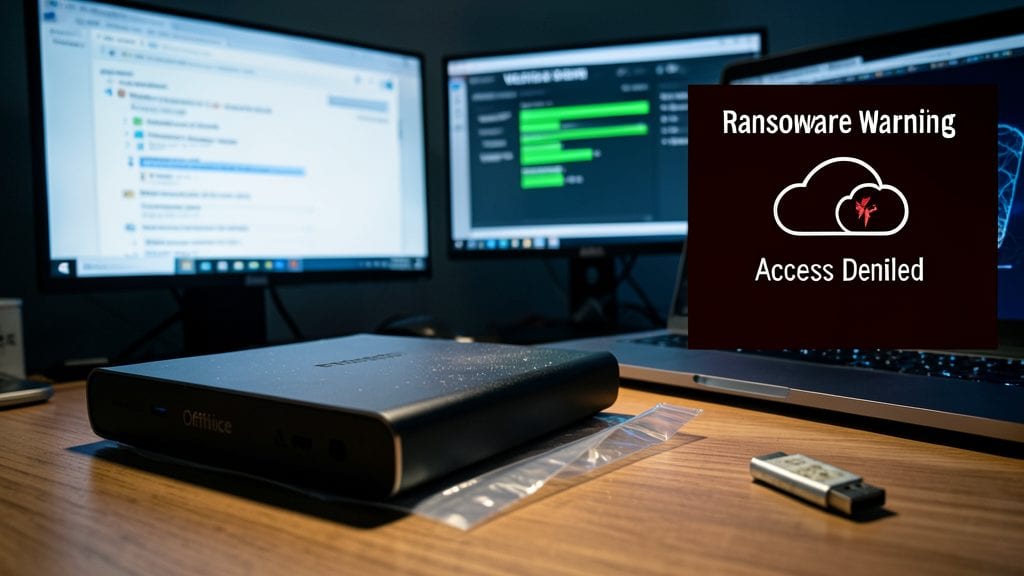
Online backups aren’t immune to ransomware—attackers can encrypt them just like your primary drives. The solution? Offline backups with verifiable integrity, ensuring your data isn’t just stored safely but also intact when you need it.
On Windows, enable File History but redirect it to an external drive (not cloud storage). For Linux, use rsync with --archive to mirror critical folders to a separate drive. Then, verify backups with checksum tools: Windows users can use certutil -hashfile, while Linux users can generate SHA-256 hashes with sha256sum. Compare these hashes after restoring to confirm nothing’s corrupted or tampered with.
This method is ideal for small businesses, photographers, or anyone with irreplaceable files. A 3-2-1 backup strategy (3 copies, 2 media types, 1 offline) adds another layer of protection—because if ransomware hits, you’ll still have a clean restore point. ✨