
Tip & Trick
Struggling to keep your Microsoft files organized? Poor naming conventions waste hours searching for documents. These seven pro-level file naming strategies will transform your workflow—whether you're managing Office files, SharePoint libraries, or OneDrive folders—like a seasoned IT professional.
Microsoft’s Official File Naming Guidelines

Tired of wasting time hunting through disorganized files in Windows, SharePoint, or OneDrive? Microsoft’s official file naming guidelines are your secret weapon for enterprise-level consistency—straight from the source.
Microsoft’s rules cover Windows file system limits (255 characters max), safe characters (letters, numbers, spaces, underscores, hyphens), and case sensitivity (Windows treats File.txt and file.TXT as different files). For SharePoint, they recommend avoiding special characters like *?<>| that break workflows, and using consistent date formats (e.g., YYYYMMDD) for chronological sorting.
IT admins and teams managing shared drives will love how these guidelines prevent version chaos and streamline searches. Start enforcing them today to cut down on file-related headaches! 💻
Date-Based Naming for Version Control
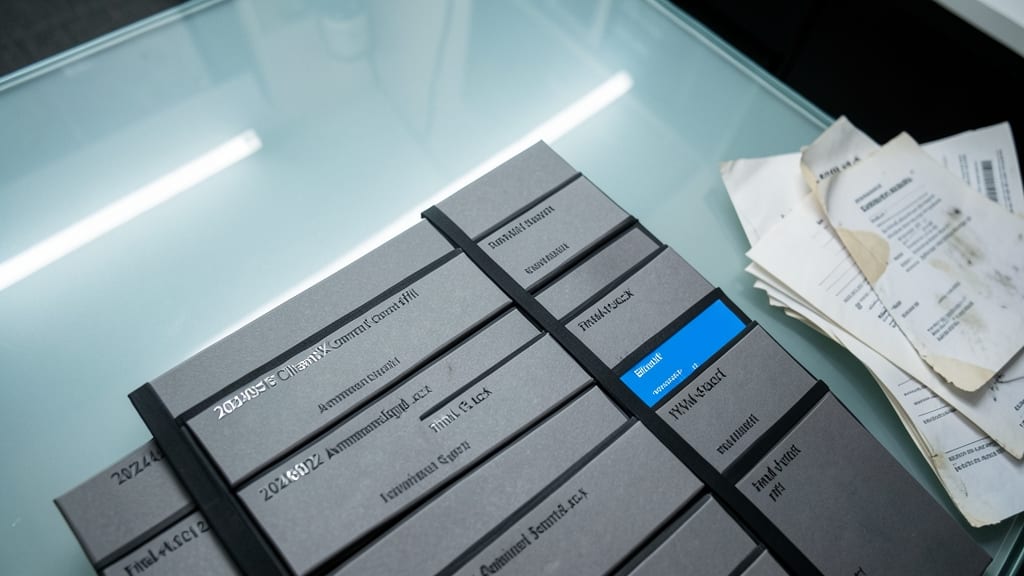
Ever spent 10 minutes searching for the latest version of a client contract? Date-based naming solves this by embedding YYYYMMDD directly into filenames, ensuring chronological sorting with zero effort. Unlike generic "Finalv3.docx" chaos, this method turns file lists into instant timelines—critical for industries where version history matters.
The YYYYMMDD format (e.g., Proposal20231015Final.docx) works seamlessly with Windows Explorer’s default sorting. Add a version suffix (e.g., "v2") for revisions, and you’ll never misplace a document again. Legal teams, accountants, and project managers swear by this for audit trails—especially when paired with read-only backups of previous versions.
This system shines for high-stakes files where context matters most. Try it for contracts, financial reports, or any document where "latest" isn’t good enough—your future self will thank you. ⚡
Department-Specific Prefixes for Teams
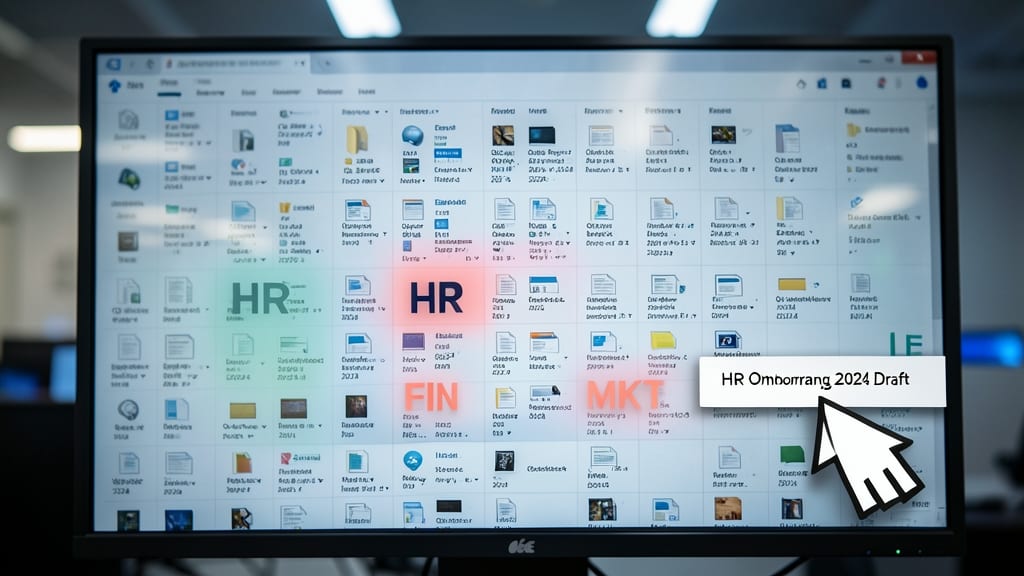
Shared drives in Microsoft 365 can quickly turn into a chaotic mess when teams from different departments dump files without clear ownership. Department-specific prefixes—like HR, FIN, or MKT—solve this by instantly labeling files by their source, making searches and collaboration effortless.
Use 2-4 uppercase letters (e.g., PROJ, ACCT) followed by an underscore to keep names clean and scannable. This system works seamlessly with SharePoint libraries and OneDrive folders, where filters can auto-group files by prefix. For example, FINQ42023Budget.xlsx leaves no doubt who owns it.
Teams managing cross-departmental projects—like marketing collaborating with finance—will see the biggest benefits, as prefixes eliminate the "whose file is this?" confusion. ⚡
Underscore vs. Hyphen Separators
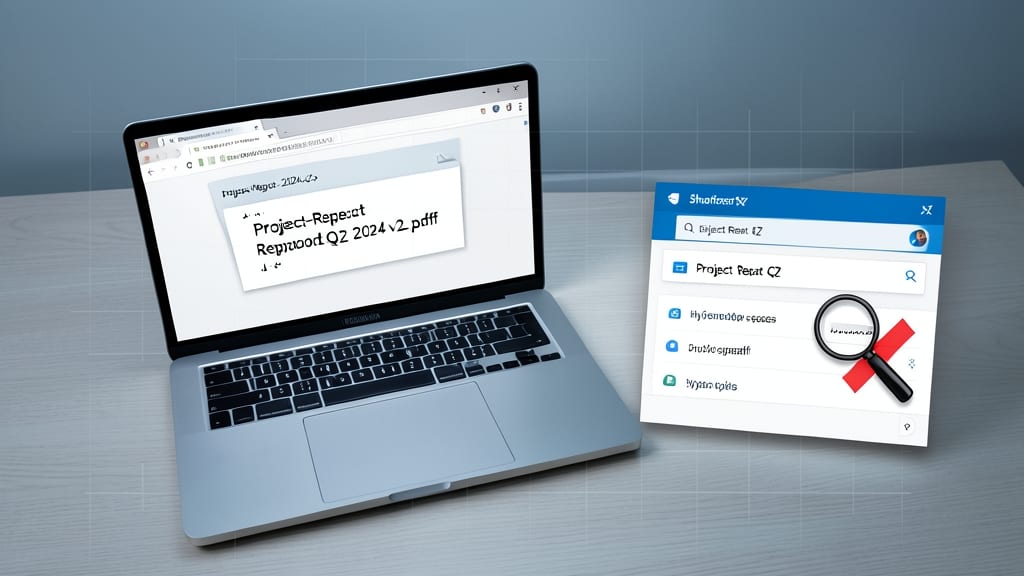
Ever struggled to find a file in Windows Search or SharePoint because of inconsistent separators? The choice between underscores () and hyphens (-) isn’t just about aesthetics—it impacts searchability and automation.
Microsoft’s Windows Search and SharePoint handle hyphens as spaces in queries, making "Project-Report-Final.docx" searchable as "Project Report Final". However, underscores () remain intact, which is critical for scripting and Power Automate workflows where hyphens might cause parsing errors. For example, "Invoice2023Q4.pdf" won’t break automation scripts that rely on exact matches.
Use hyphens for human-readable filenames in shared drives (e.g., "Client-Proposal-v2.pptx") and underscores for technical systems or automated processes. This dual approach ensures both readability and compatibility. ✨
OneDrive and SharePoint Metadata Tags

Tired of drowning in folders that can’t tell you who owns a file or which project it belongs to? OneDrive and SharePoint metadata tags let you add invisible layers of organization—like Project: Q4, Owner: Sarah, or Status: Approved—without touching the filename itself.
These built-in tags work seamlessly with SharePoint libraries and OneDrive, letting you filter, sort, and search files by custom attributes. For example, you can instantly find all Confidential files from Client: Acme Corp without digging through folders. The system even supports color-coding for visual cues at a glance.
Perfect for teams managing client projects, contracts, or internal documentation—where folder structures get messy fast. No more guessing who last edited a file or which version is final. ✨
Avoiding Special Characters in Filenames

Automated workflows in Power Automate or Azure can grind to a halt if filenames contain symbols like #$%&. These characters don’t just look messy—they break scripts, corrupt metadata, and trigger errors in cloud integrations, turning a simple file transfer into a debugging nightmare.
Microsoft’s Windows filesystem explicitly blocks symbols like <, >, :, ", /, \, |, ?, and , while others (e.g., &, %, !) cause issues in SharePoint or PowerShell scripts. The safe alternatives? Stick to letters, numbers, underscores (), hyphens (-), and periods (.)—or use this cheat sheet for quick fixes: Replace # with v, $ with dollar, and !* with ex.
This rule is non-negotiable for IT admins managing automated pipelines or developers integrating Microsoft services. A single misplaced symbol can derail an entire Azure Logic Apps workflow—so save yourself the headache and clean up those filenames now. 💻
Naming Templates for Office File Types
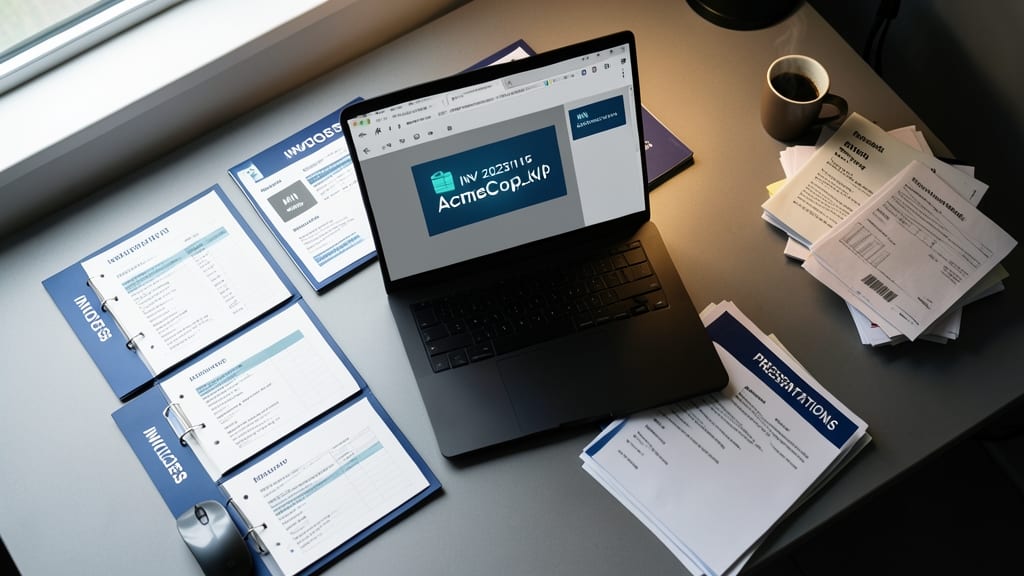
Tired of spending minutes searching for the right invoice or presentation in a cluttered folder? Naming templates like INV20231115AcmeCorp.xlsx or MIN20231115Q4Review.pptx eliminate guesswork by embedding file type, date, and purpose into every name—so you (or your team) can find files instantly.
Start with a 3-4 character prefix (e.g., INV for invoices, MIN for meeting notes) followed by YYYYMMDD for chronological sorting. End with a descriptive suffix (e.g., CustomerName or ProjectCode) to avoid ambiguity. These templates work seamlessly across Excel, Word, and PowerPoint, and sync perfectly with SharePoint libraries or OneDrive folders.
This system is a game-changer for freelancers, small teams, or admins juggling multiple clients or projects. Implement it once, and save hours weekly. ✨