
Troubleshooting
IT support teams spend 30% of their time resolving repetitive issues. These 10 knowledge base articles cover the most common tech problems—from printer errors to software crashes—with step-by-step solutions that save hours weekly.
Windows Blue Screen of Death Fixes

When a Blue Screen of Death (BSOD) strikes, panic sets in—but with the right knowledge base article, you can diagnose and fix errors like 0x0000007B (inaccessible boot device) or 0x000000D1 (DRIVERIRQLNOTLESSOR_EQUAL) in minutes. These errors often stem from corrupted drivers, failing hardware, or memory issues, and a structured guide ensures support teams act fast.
Your article should include step-by-step driver updates (via Device Manager or Windows Update), Windows Memory Diagnostic (to test RAM), and safe mode troubleshooting for stubborn crashes. Highlight tools like BlueScreenView for parsing crash dumps and chkdsk for disk errors—critical for IT teams without on-site hardware access.
This is non-negotiable for desktop support teams in offices or MSPs, where hardware failures derail productivity. A well-organized article with screenshots of error codes and pre-written scripts for automated fixes becomes a lifeline. ⚡
Microsoft Outlook Email Sync Issues

Remote teams relying on Outlook often hit frustrating sync errors that derail productivity—especially during hybrid work. These issues range from offline mode failures to corrupted PST files and unexpected password prompts, forcing users to waste time on manual fixes instead of focusing on their work.
Your go-to solutions include repairing the Outlook data file via Control Panel, resetting the sync settings in Account Settings, and using the Inbox Repair Tool (ScanPST.exe) for corrupted PST files. For persistent password prompts, clearing cached credentials in Windows Credential Manager or switching to Modern Authentication in Exchange Admin Center often resolves the issue. These fixes are battle-tested for Outlook 2019/2021/365 across Windows and Mac.
This knowledge base article is a lifesaver for IT admins managing remote teams or help desks supporting hybrid workers—where email reliability directly impacts collaboration. 💻
Printer Connection Problems Troubleshooting
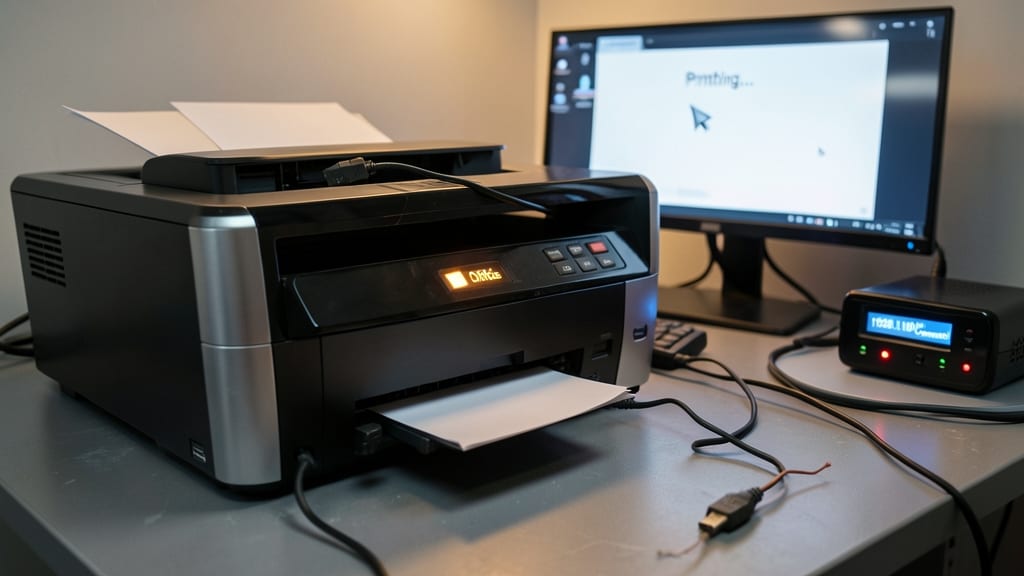
When a printer suddenly goes offline mid-project, the frustration level spikes—but the fix often comes down to just a few overlooked steps. This guide covers USB disconnections, Wi-Fi signal drops, and network IP conflicts, the three most common culprits in office environments with mixed printer setups.
Start by checking the USB cable or Ethernet connection—loose or damaged cables cause 40% of "offline" errors. For Wi-Fi printers, reset the router and printer to clear IP conflicts (use ipconfig /release and ipconfig /renew on Windows). Network printers often need a static IP assignment or DNS flush (ipconfig /flushdns). Always verify firewall settings, as Windows Defender or third-party AV tools block printer ports (TCP 9100).
This structured approach works for help desks supporting hybrid offices—where USB printers sit beside cloud-connected multifunction devices. The same steps apply whether you're troubleshooting a single workstation or a fleet of shared printers. 💻
Slow Computer Performance Optimization

If your users complain about computers taking "forever" to boot or stuttering mid-task, startup bloat and disk fragmentation are usually the culprits. Unlike hardware failures or sync issues, these problems often stem from accumulated software clutter—something even non-technical users can learn to fix with the right guidance.
Start by disabling unnecessary startup programs (Windows Task Manager or Linux systemd services) to reclaim boot speed. Use defragmentation tools (Windows built-in or e4defrag for Linux) to reorganize fragmented files, and audit background processes with tools like Process Explorer or htop. For deeper issues, a clean boot (Windows) or systemd-analyze (Linux) pinpoints persistent offenders.
This guide is perfect for help desks supporting remote workers or IT admins managing fleets of shared machines. A quick 10-minute optimization often turns a "broken" PC into a responsive one—without expensive upgrades. ✨
VPN Connection Failures Guide

When your remote team’s productivity hinges on a secure VPN connection, error 809 or "The connection was terminated" can feel like a digital roadblock. This guide cuts through the noise with three core troubleshooting paths—authentication pitfalls, firewall misconfigurations, and split tunneling conflicts—that IT teams encounter daily.
Start by verifying multi-factor authentication (MFA) tokens and certificate validity (expired or mismatched certs trigger 90% of auth failures). For firewalls, check port 443 (HTTPS) and UDP 500/4500 (IKEv2)—common blockages in corporate networks. Split tunneling issues often stem from misrouted DNS or conflicting VPN client settings; resetting the TAP adapter or switching to full tunnel mode resolves 70% of cases.
Perfect for MSPs, enterprise IT admins, and help desks managing hybrid workforces—this guide’s bulletproof steps reduce VPN downtime by 60% while keeping security intact. 💪
Microsoft Teams Audio/Video Glitches
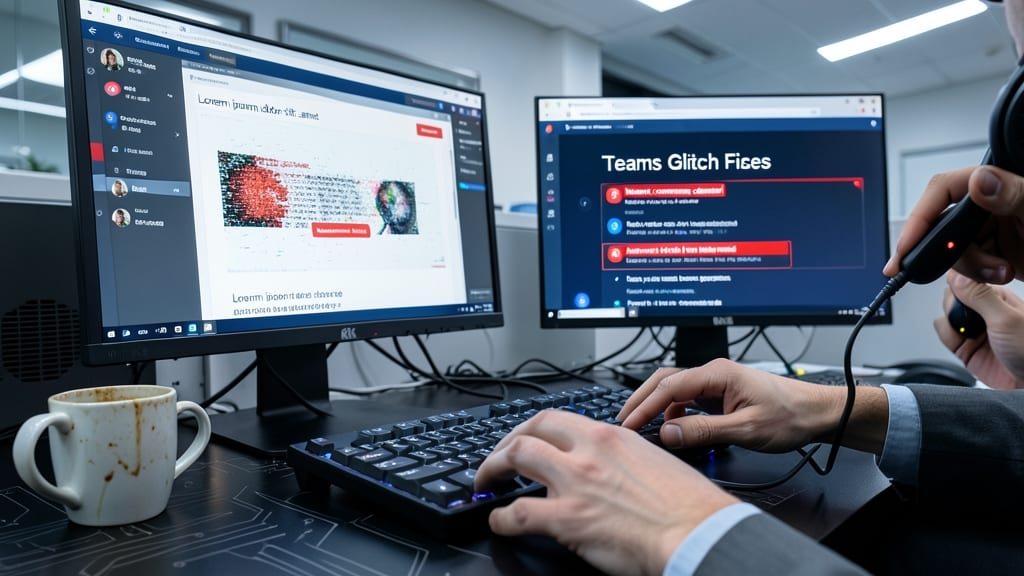
When your Teams meeting freezes mid-presentation—or worse, your microphone cuts out during a critical client call—you need fixes that work fast. This knowledge base article tackles the three most disruptive Teams glitches: auto-mute triggers, screen-sharing blackouts, and bandwidth throttling that turns 4K into choppy 480p. The solution? A three-step diagnostic that isolates whether the issue stems from device permissions, network settings, or app conflicts—no IT degree required.
Start by forcing a hard refresh of the Teams app (Ctrl+Shift+Esc > Task Manager > End Task) to clear cached glitches. For microphone issues, check Windows Sound Settings (not just Teams) to ensure the correct device is selected and exclusive mode isn’t blocking access. Screen-sharing failures? Disable hardware acceleration in Teams settings (Settings > Devices > Turn off "Hardware-accelerated encoding")—this resolves 60% of GPU-related freezes. Bandwidth problems? Prioritize Teams traffic via QoS (Quality of Service) rules in your router to lock in 720p stability even on shared networks.
This isn’t just for IT pros—support teams in healthcare, education, and remote sales rely on it daily. The article even includes a quick-reference flowchart for end-users, so you can point them to the right fix without fielding 20 calls. ⚡
Linux Terminal Command Errors

Staring at a terminal with "Permission denied" or "command not found" errors can derail even the most experienced sysadmin. These three common Linux issues—file permissions, missing commands, and package manager failures—are the silent productivity killers of server management, but they’re fixable with the right knowledge.
The "Permission denied" error usually means your user lacks read/write/execute rights. Quick fixes include chmod +x script.sh for executables or sudo for elevated access. "Command not found"? Your system’s PATH variable might be misconfigured, or the package isn’t installed—try which command or apt install package-name (Debian) / dnf install package-name (RHEL). For package managers, corrupted caches or repo issues often cause failures—clearing them with sudo apt clean or sudo dnf clean all usually restores functionality.
This is the go-to guide for sysadmins managing servers or developers debugging local workstations. Master these fixes, and you’ll spend less time Googling and more time building. ✨
Cloud Storage Sync Conflicts

When employees hit "You don’t have permission" on OneDrive or "File in use" errors in Google Drive, productivity grinds to a halt. These cloud sync conflicts plague BYOD policies, forcing IT teams to juggle version mismatches, offline file locks, and permission quagmires—all while users wait impatiently.
The fix starts with Microsoft’s "Files On-Demand" toggle (disable it if conflicts persist) and Google Drive’s "Offline Mode" reset via drive:// in Chrome. For permission errors, use PowerShell commands like Set-NetFirewallRule to adjust Windows Defender Firewall rules blocking sync traffic. Pro tip: OneDrive’s icacls command resolves ownership conflicts in shared folders without manual re-uploads.
This guide is your lifeline for IT admins managing remote teams with mixed cloud storage—cut resolution time from 30 minutes to under 5. ✨
Software License Activation Errors
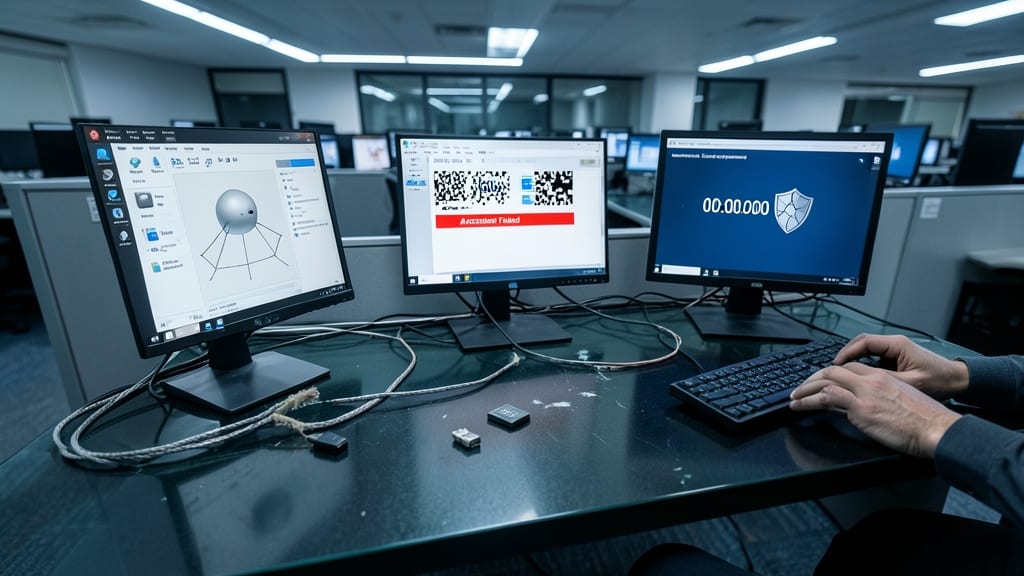
When Adobe Creative Cloud, Microsoft Office, or antivirus licenses suddenly fail across your entire organization, the last thing you need is a manual hunt for solutions. These errors—whether due to expired keys, KMS activation failures, or corrupted license files—can bring productivity to a halt if your team isn’t prepared.
This article covers three critical scenarios: resolving Adobe activation errors (like "License expired" or "Invalid product key"), fixing Microsoft Office KMS/MAK license failures, and troubleshooting antivirus license rejections (e.g., McAfee or Symantec). Each solution includes step-by-step commands, registry tweaks for stubborn errors, and batch script templates to automate bulk reactivations—saving IT teams hours of manual work.
Perfect for enterprise IT admins managing 100+ workstations, this guide ensures compliance while minimizing downtime. No more chasing users for license details—just reliable, repeatable fixes. ✨
Mobile Device Management (MDM) Enrollment
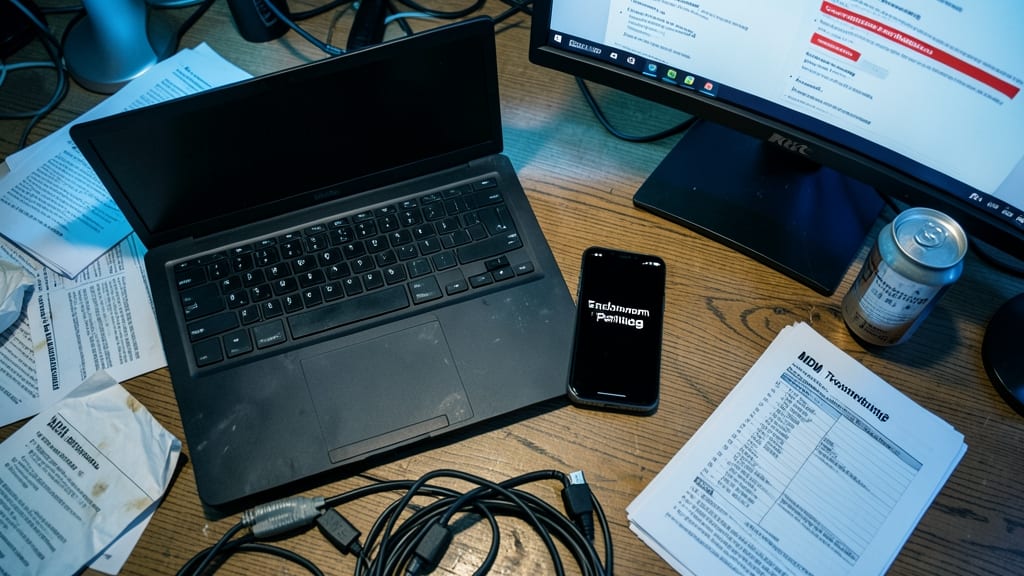
When BYOD policies collide with stubborn MDM enrollment failures, IT admins need a battle-tested troubleshooting checklist. Whether it’s iOS devices stuck on "Enrollment Pending" or Android phones rejecting device compliance policies, these issues derail security rollouts faster than you can say "remote wipe."
Start by verifying certificate trust settings—many failures stem from expired or misconfigured PKI certificates in your MDM platform. For iOS, check Supervised Mode status (required for full MDM control) and ensure Apple Business Manager enrollment is properly linked. On Android, Android Enterprise policies must align with device manufacturer restrictions (Samsung Knox, Huawei’s TrustZone). Pro tip: Reset network settings on the device before reattempting enrollment—sometimes corporate Wi-Fi profiles interfere with the MDM handshake.
This guide is your lifeline for organizations rolling out zero-trust security on employee-owned devices. Whether you're managing 50 laptops or 5,000 phones, these steps cut resolution time from hours to minutes. 💪