
PowerPoint
Struggling to make your PowerPoint presentations flow seamlessly? These seven transition effects will transform your slideshow from boring to breathtaking, helping you engage audiences with professional polish and dynamic movement.
Fade Slide Transition for Elegant Professionalism
Need a transition that screams "professional" without screaming "distraction"? The Fade effect in PowerPoint is your go-to for high-stakes presentations—think boardroom pitches or academic lectures where subtlety speaks louder than flash.
This classic transition smoothly dissolves one slide into the next, creating a seamless flow that keeps focus on your content, not the animation. It’s built into every version of PowerPoint (from 2010 to 365), works flawlessly across devices, and pairs perfectly with the "subtle" speed setting for polished timing. Adjust the duration to match your pacing—0.5 to 1.5 seconds is ideal for corporate rhythm.
Perfect for finance teams, educators, or executives delivering executive summaries—where elegance matters more than spectacle. Just avoid overusing it; one fade per section keeps the impact refined. ✨
Slide Zoom Effect for Dynamic Highlights
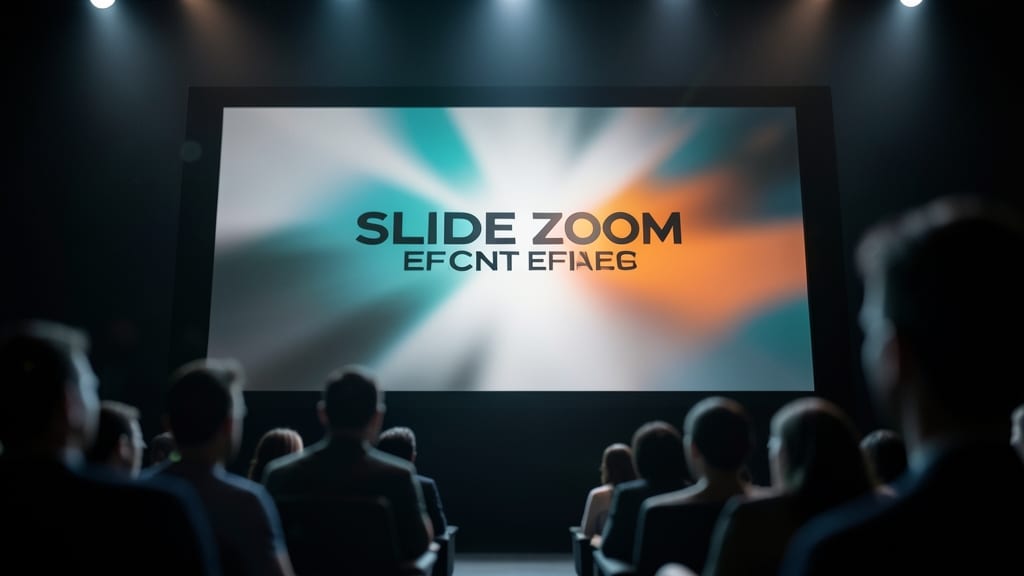
Need to make a slide pop during a keynote or training session? The Slide Zoom Effect turns your presentation into a cinematic experience by simulating a camera zoom—blurring the background before sharply focusing on your key content.
This transition works by zooming in from a distance, creating a dramatic reveal that feels like a high-energy spotlight. In PowerPoint 2016 and later, you can adjust the speed and direction (inward/outward) to match your pacing. The effect pairs well with bold visuals or data-heavy slides where you want to emphasize a "big moment."
Trainers and speakers will love this for highlighting case studies, call-to-action slides, or impactful statistics. Just avoid overusing it—save it for moments where you want to command attention. ✨
Push Slide Transition for Modern Minimalism
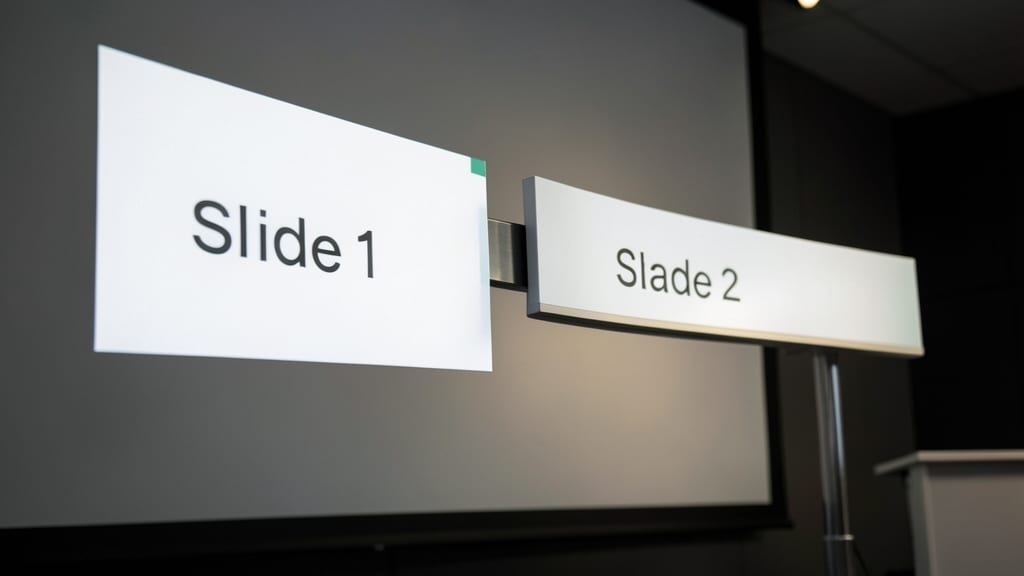
When your audience values clean design over flashy gimmicks, the Push transition delivers a polished, unobtrusive shift between slides. Unlike zoom or fade effects, it mimics a physical slide tray—one slide glides out while the next slides in from the opposite side, creating a precise, linear motion that feels intentional.
Available in PowerPoint 2013 and later, this transition works best with monochrome or high-contrast layouts to emphasize its geometric elegance. Adjust the speed (slow for emphasis, fast for pacing) and pair it with minimal sound effects (like a subtle "whoosh") to keep the focus on content. It’s also mobile-friendly, ensuring crisp transitions on tablets or projectors.
Designers, marketers, and tech presenters will appreciate how this transition reinforces structure without overwhelming the viewer. Perfect for portfolio reviews or product demos where clarity and professionalism are key. ✨
Morph Transition for Seamless Data Visualization
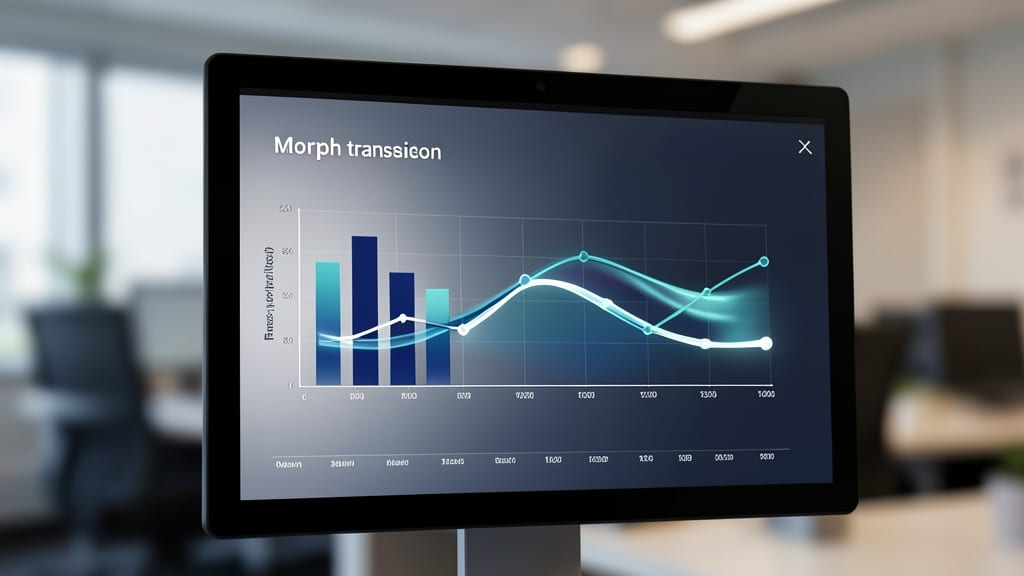
When your data tells a story of gradual evolution—like shifting market trends or incremental growth—you need a transition that mirrors that precision. The Morph transition in PowerPoint transforms static charts into fluid, evolving visuals, smoothly interpolating between similar graphs, maps, or diagrams without jarring cuts.
This effect works best with comparable slide layouts (e.g., bar charts with the same axes or pie charts with similar categories). It’s available in PowerPoint 2016 and later, including the desktop and online versions, and supports timing adjustments to control the animation speed. For data-heavy presentations, it’s the only transition that preserves context while highlighting changes—ideal for dashboards or analytical deep dives.
Data analysts, financial planners, and researchers will love Morph for its ability to turn complex comparisons into intuitive visual narratives. Just ensure your slides share structural consistency for the smoothest results. ✨
Wipe Slide Transition for Creative Storytelling

Crafting a presentation that feels like a storybook? The Wipe transition in PowerPoint lets you "turn the page" with a satisfying horizontal or vertical reveal—perfect for narrative-driven slideshows.
Available in horizontal, vertical, or diagonal directions, this effect mimics a curtain or page flip, adding cinematic flair to creative pitches, artist portfolios, or even children’s presentations. Pair it with subtle sound effects (like a page turn) to enhance immersion. It’s especially effective when paired with minimalist layouts to keep the focus on your content.
Storytellers, filmmakers, and educators will love how the Wipe transition builds anticipation—ideal for unveiling key moments or transitions between acts. ✨
Box In/Out Transition for Structured Flow
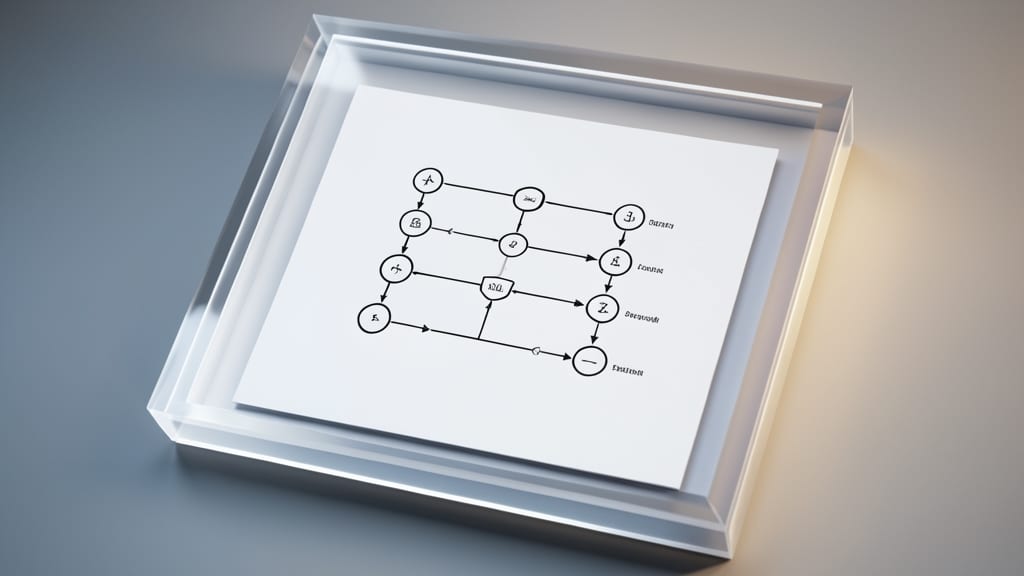
Need to guide your audience through a process without losing their focus? The Box In/Out transition turns your slides into a structured, almost tactile experience by simulating content being placed into or removed from a container.
This effect works by framing slides as if they’re sliding into a virtual box (In) or popping out (Out), creating a clear visual hierarchy perfect for tutorials or workflows. Adjust the speed and direction (horizontal/vertical) to match your pacing, and pair it with sound effects (like a subtle "click") for added emphasis. It’s available in PowerPoint 2013 and later, including the desktop and online versions.
Trainers, educators, and tech demonstrators will love this for breaking down complex steps—think software walkthroughs or assembly guides. It’s the ultimate way to keep your audience locked into your structured flow. ✨
3D Orbit Transition for Interactive Engagement

Want your tech demos to feel like a hands-on experience? The 3D Orbit Transition turns static slides into an interactive 3D journey, letting you "spin" content as if it’s floating in space. This isn’t just a transition—it’s a way to simulate real-world interaction, perfect for workshops where you want to showcase products or concepts from every angle.
With customizable rotation axes and smooth 360-degree spins, you can highlight key elements by "orbiting" around them. The effect works best in PowerPoint 2016+ and integrates seamlessly with 3D models or diagrams, making it ideal for hardware demos or architectural walkthroughs. Just be mindful of motion sickness—test the timing to avoid overdoing it!
This is the go-to choice for educators, engineers, or product trainers who want to turn passive viewers into active participants. Imagine showing a circuit board or 3D-printed prototype from every side—now your audience feels like they’re holding it in their hands. ✨