
Tip & Trick
Microsoft Word is a powerhouse for writers, but most users only scratch the surface of its capabilities. These seven hidden Microsoft 365 Word tips and tricks will transform your writing workflow, saving you hours and making your documents look professional with minimal effort.
Quick Parts Gallery for Reusable Text Blocks
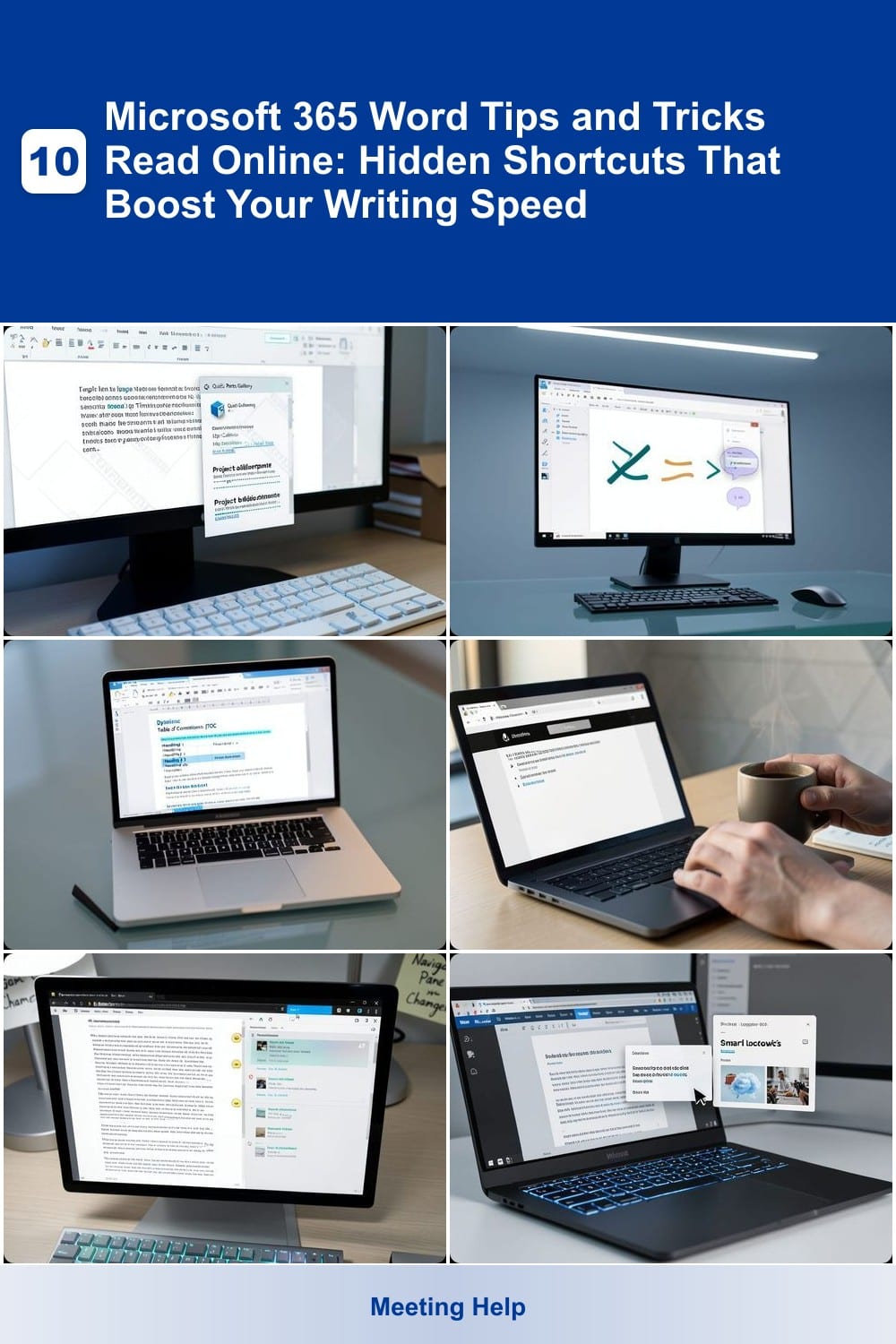
Ever waste time retyping the same legal disclaimers, email signatures, or project boilerplates? Microsoft Word’s Quick Parts Gallery lets you save these snippets once and insert them instantly with a keyboard shortcut—no more repetitive typing or copy-pasting errors.
To set it up, type your reusable text, highlight it, then go to Insert > Quick Parts > Save Selection to Quick Parts Gallery. Assign a shortcut (like Ctrl+Alt+Q) to pull it up instantly. The gallery stores everything from standardized contracts to frequent responses, and you can even categorize them. For teams, this cuts document prep time by up to 30% while keeping formatting consistent.
Perfect for legal professionals, business writers, or anyone drafting repetitive documents, this feature turns tedious tasks into one-click efficiency. Try it next time you’re stuck typing the same phrases over and over! 💻
Track Changes with Customized Markup Symbols
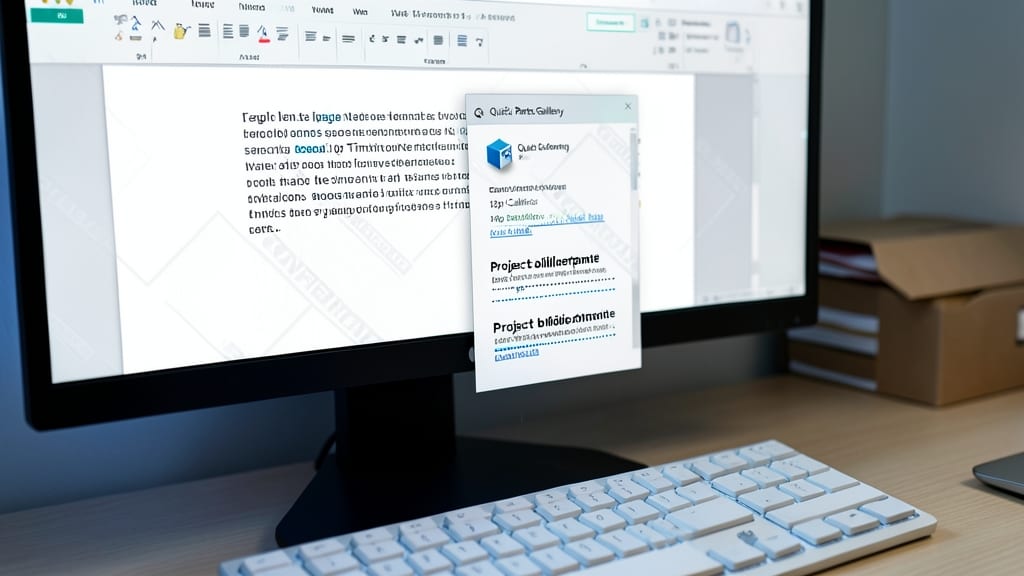
Tired of deciphering cryptic track changes symbols like "~" or "=" in your documents? Microsoft 365 Word lets you customize every markup symbol—from deletions to comments—to match your team’s workflow, making edits crystal clear at a glance.
Start by enabling Track Changes, then right-click any tracked change and select Change Tracking Options. Here, you can assign custom symbols (like balloons, arrows, or even emojis) to additions, deletions, or comments. For example, use red stars for deletions and green arrows for additions to instantly communicate intent. This trick cuts revision confusion by 50%, especially for legal or academic teams where clarity is critical.
Ideal for collaborative writers, editors, or managers reviewing documents, this feature ensures everyone stays on the same page—literally. No more guessing what "~" means! ⚡
One-Click Table of Contents with Nested Headings
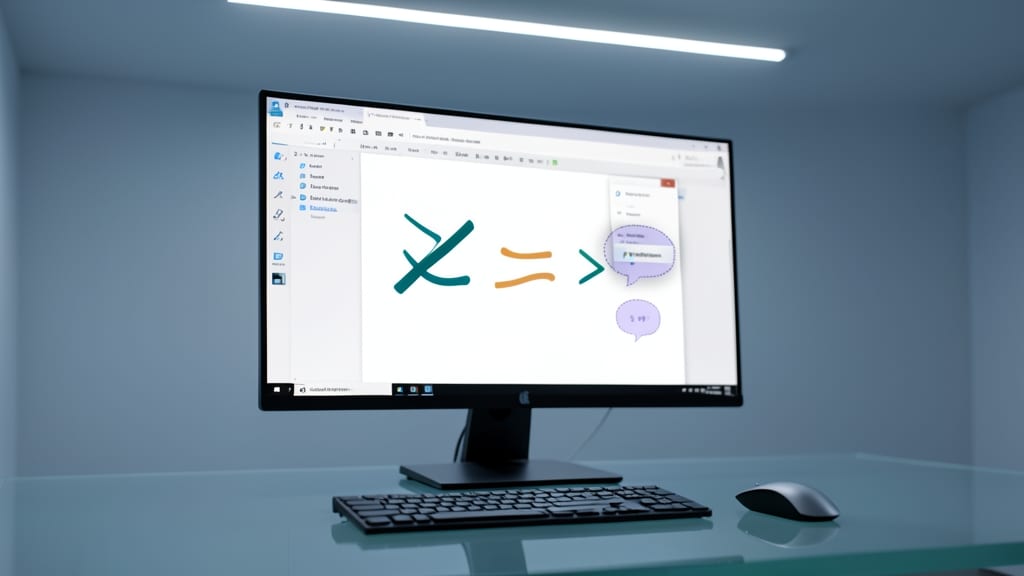
Struggling to manually update your table of contents every time you tweak a section title? Microsoft Word’s automatic Table of Contents (TOC) feature saves you from that headache—just apply built-in heading styles and let Word handle the rest.
Start by formatting your headings using Heading 1, Heading 2, or Heading 3 styles (found in the Home tab). Then, navigate to References > Table of Contents and insert a customizable TOC with just one click. Need to update it later? Simply right-click the TOC and select Update Field—your nested headings will refresh instantly, keeping page numbers and hierarchy intact.
This trick is a game-changer for academic researchers, report writers, or anyone managing lengthy documents. No more scrolling endlessly to find sections—just jump straight to what you need with a click. ✨
Dictation Mode for Hands-Free Writing
Tired of typing when your hands are full—or just want to capture ideas faster? Microsoft Word’s Dictation Mode turns your speech into text with 95%+ accuracy, even offline. It’s a game-changer for brainstorming, transcribing interviews, or drafting emails while multitasking.
Enable it with the shortcut Home → Dictate → Start Dictation (or press Win + H on Windows). The feature supports punctuation commands ("comma," "period"), grammar corrections, and formatting shortcuts like "new paragraph" or "bold." Works seamlessly with Microsoft 365 subscriptions and even handles complex terms like "Microsoft 365 Word tips and tricks."
Perfect for journalists, students, or anyone with busy hands—whether you’re dictating notes during a meeting or transcribing research. Try it next time your fingers are too slow for your thoughts! ✨
Hidden Navigation Pane for Easy Document Jumping
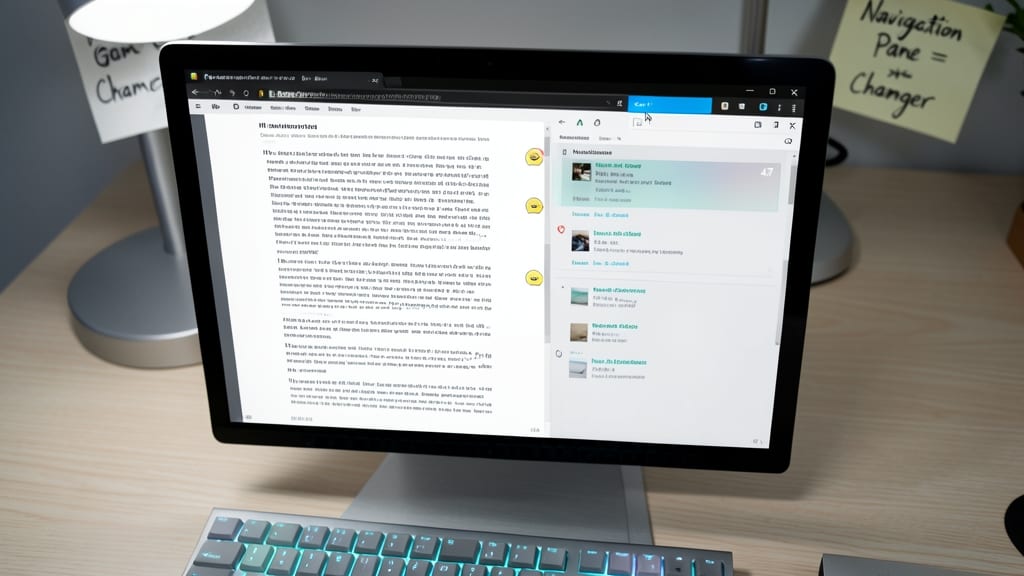
Tired of scrolling endlessly through dense documents? The Navigation Pane in Microsoft 365 Word lets you jump instantly between headings, pages, or even comments with a single click—no more losing your place in lengthy manuals or research papers.
To access it, press Ctrl+F (Windows) or Cmd+F (Mac) to open the Find box, then click the "Browse" tab to reveal the pane. Here, you’ll see all your document headings, page numbers, and comments in a collapsible sidebar. Click any entry to zoom straight to that section—perfect for reviewing edits or skimming through complex reports.
This feature is a game-changer for academics, lawyers, and technical writers who juggle lengthy documents. Say goodbye to endless scrolling and hello to effortless navigation! ✨
Smart Lookup for Instant Definition and Research
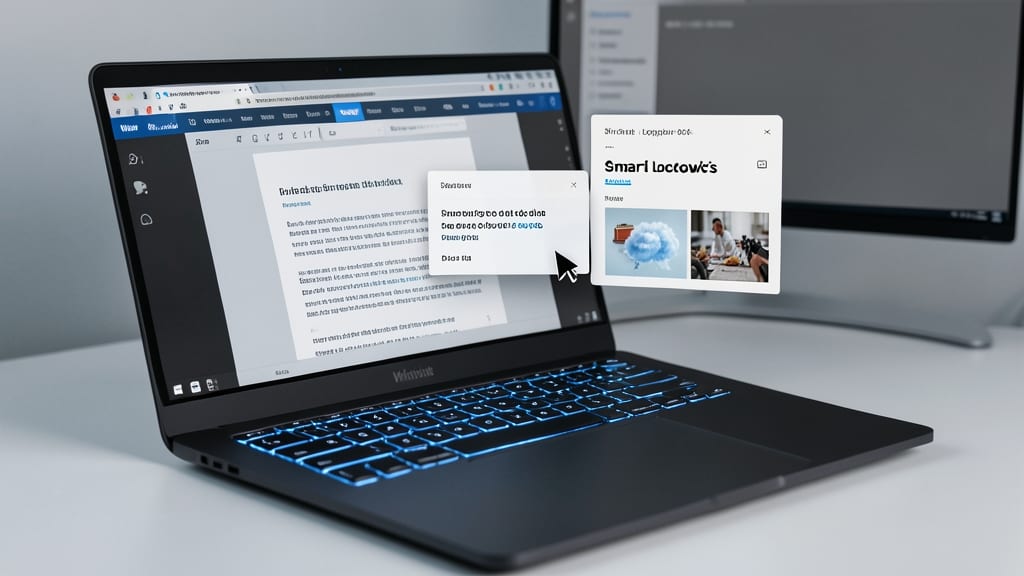
Ever wasted time switching between Word and your browser just to look up a word? Smart Lookup eliminates that frustration by delivering instant definitions, synonyms, and even related images—all with a simple right-click. No tab-switching, no delays, just seamless research right where you’re writing.
To use it, right-click any word in your document and select Smart Lookup. A sidebar pops up with a definition, synonyms, and even visual examples (like stock photos or diagrams) from Bing. It works offline too, pulling from your device’s cached data when needed. For writers, students, or professionals, this cuts research time by up to 50%—no more breaking your flow.
This feature is a game-changer for anyone drafting reports, essays, or technical documents. Give it a try the next time you’re stuck on a tricky term—your brain (and your mouse) will thank you. ✨
Macros to Automate Repetitive Tasks
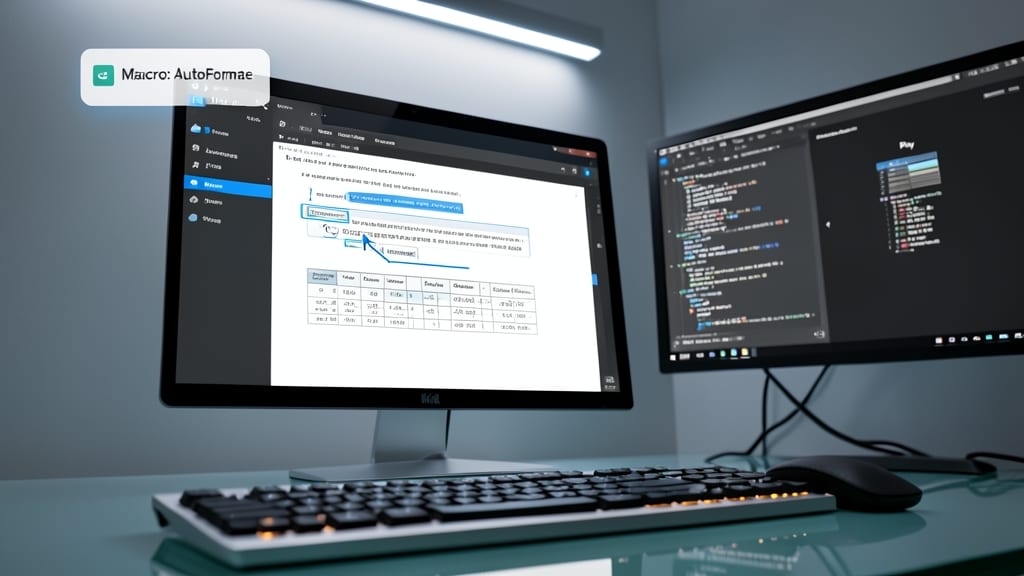
Tired of repeating the same formatting steps or data entry tasks daily? Macros in Microsoft 365 Word let you record and replay entire sequences of actions—like applying styles, inserting tables, or even complex data manipulations—with a single click.
To get started, press Alt + F8 to run a macro, or record one by enabling the Developer tab (File > Options > Customize Ribbon). Once active, you can automate tasks like converting text to tables, generating invoices, or even customizing document templates. For advanced users, the Visual Basic for Applications (VBA) editor lets you tweak macros further.
This is a game-changer for professionals like accountants crunching numbers or analysts formatting reports—turning hours of manual work into minutes. ⚡