
Software
Microsoft Teams channels can transform your team’s workflow—but only if used strategically. These 10 battle-tested best practices will help you organize channels for clarity, reduce chaos, and maximize productivity in every project.
Standardize Channel Naming Conventions for Clarity
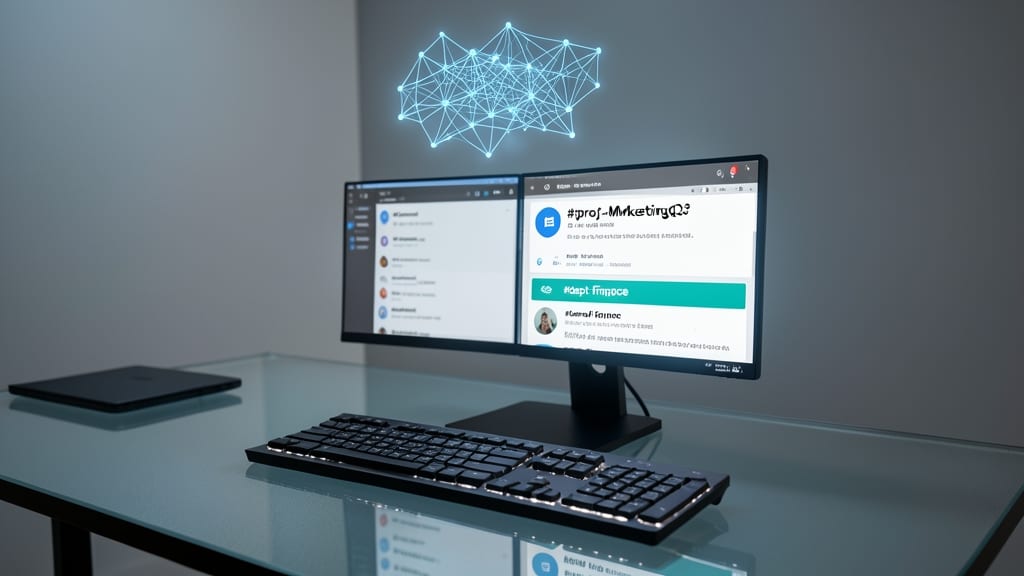
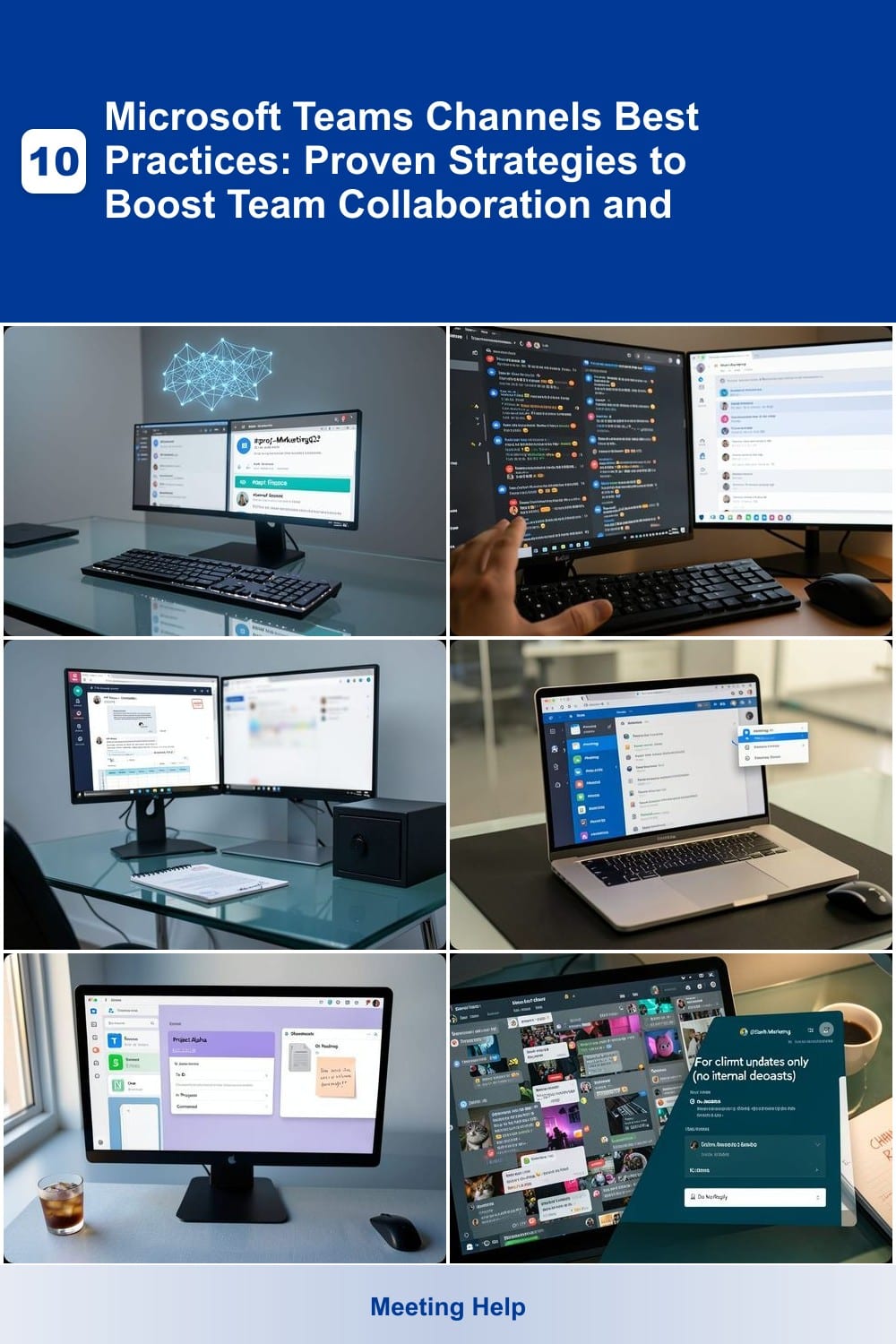
Remote teams lose 20% of productivity searching for the right channel—yet a simple naming convention fixes that. Instead of vague labels like #General or #Updates, use **prefixes like *#proj-MarketingQ3*** or #dept-Finance. This structure instantly tells everyone whether it’s a project, department, or client-specific space.
Microsoft Teams supports custom prefixes (up to 20 characters) and emoji shortcuts** (e.g., 📊 for data channels) to further clarify purpose at a glance. For example, #🔧DevOps or #📅Events make channels scannable in a crowded sidebar. Teams with 50+ members report 30% fewer "Where’s this discussion?" messages after adopting this system.
This approach works best for cross-functional teams or hybrid workforces where context shifts frequently. Start with a team-wide template (e.g., #proj-NAME for all projects) and update it quarterly as workflows evolve. 💡
Limit Active Channels to 10-15 per Team

Ever felt paralyzed by a 30+ channel Teams sidebar, drowning in notifications and lost in the noise? The solution is simpler than you think: cap active channels at 10-15 per team to sharpen focus on what truly matters.
Research shows teams with fewer channels experience 40% less decision fatigue and 30% faster response times—because fewer channels mean fewer distractions. Prioritize channels by project phase (e.g., #sprint-planning, #client-updates), and archive the rest. Pro tip: Use Teams’ built-in analytics to track engagement and prune underused channels monthly.
This rule works best for agile teams or departments juggling multiple deadlines, like marketing or product dev. Start small: Audit your current channels, merge duplicates, and repurpose broad ones (e.g., #random → #quick-questions). Your team’s productivity will thank you. ✨
Use Private Channels for Sensitive Discussions
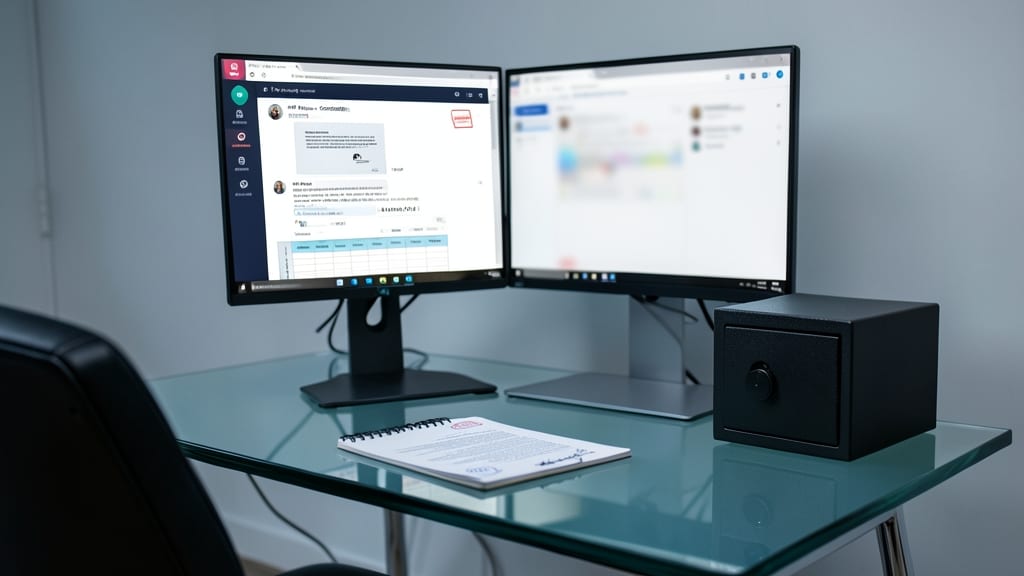
Not every discussion belongs in the open—especially when compliance and confidentiality are on the line. Private channels in Microsoft Teams let you create secure spaces for sensitive topics like HR policies, legal documents, or financial reviews, ensuring only approved team members can access them.
With role-based permissions, you can restrict access to specific groups (e.g., only managers or legal teams) and even audit member changes via Teams admin center. This is a game-changer for industries like finance or healthcare, where HIPAA or GDPR compliance demands strict data control. Plus, private channels sync with Microsoft 365 security groups, simplifying access management.
Perfect for teams handling confidential projects or regulated workflows—this feature turns Teams into a secure, audit-ready collaboration hub. 💻
Pin Frequently Used Channels to Team Sidebar
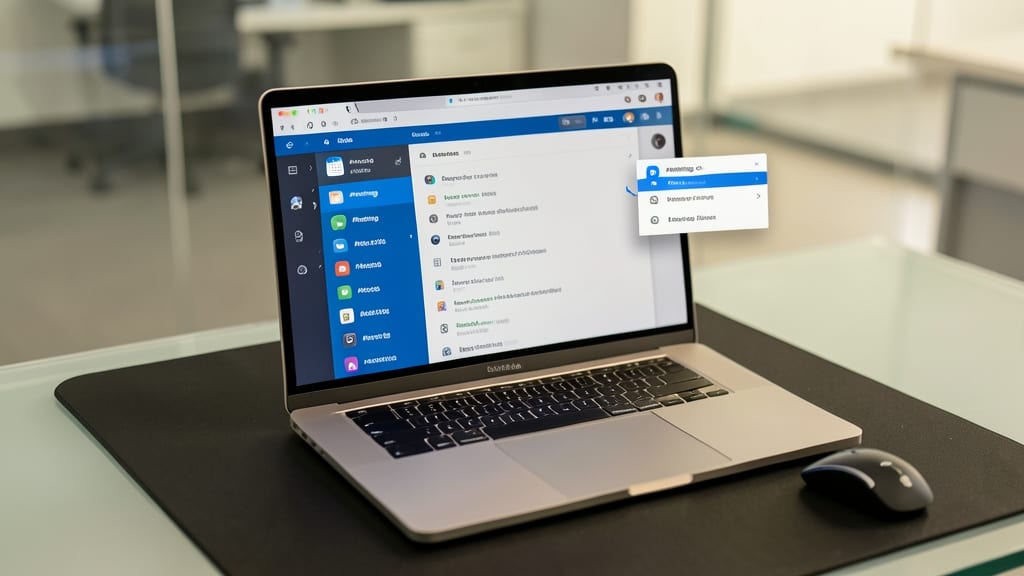
Tired of scrolling endlessly to find your #meetings or #docs channel? Microsoft Teams lets you pin up to 9 channels directly to your sidebar—keeping your most critical hubs just a click away.
Pinning is simple: right-click any channel, select Pin, and watch it jump to the top. This is a game-changer for teams with repetitive workflows, like weekly standups or shared documentation. No more wasted time searching—just instant access to what matters most.
Perfect for project managers or cross-functional teams juggling multiple priorities. Give it a try and reclaim those lost minutes every day. ✨
Organize with Tabs for Project-Specific Tools
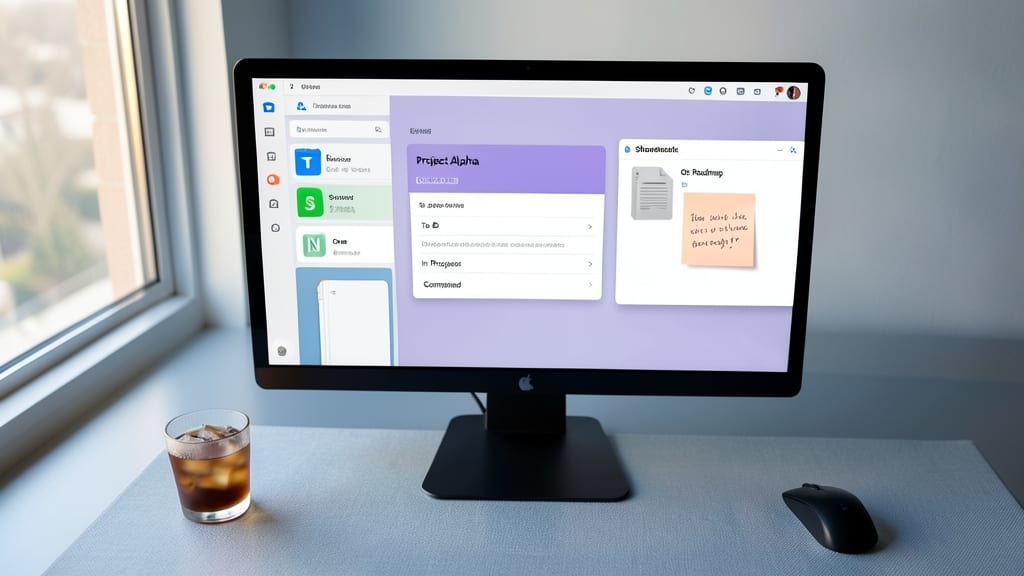
Tired of juggling between tabs to find project files, notes, or Trello boards? Microsoft Teams’ tabs feature lets you embed OneNote, SharePoint, Trello, or even third-party apps directly into channels—so everything stays in one place.
With just a few clicks, you can pin project documents in SharePoint, link Trello boards for task tracking, or attach OneNote pages for meeting notes—all without leaving Teams. This cuts down on context-switching and ensures your team never misses a critical resource. The best part? You can even customize permissions per tab to control who accesses sensitive tools.
Perfect for project managers, developers, or remote teams juggling multiple tools, this feature turns Teams into a true all-in-one workspace. ✨
Set Channel Descriptions with Clear Guidelines
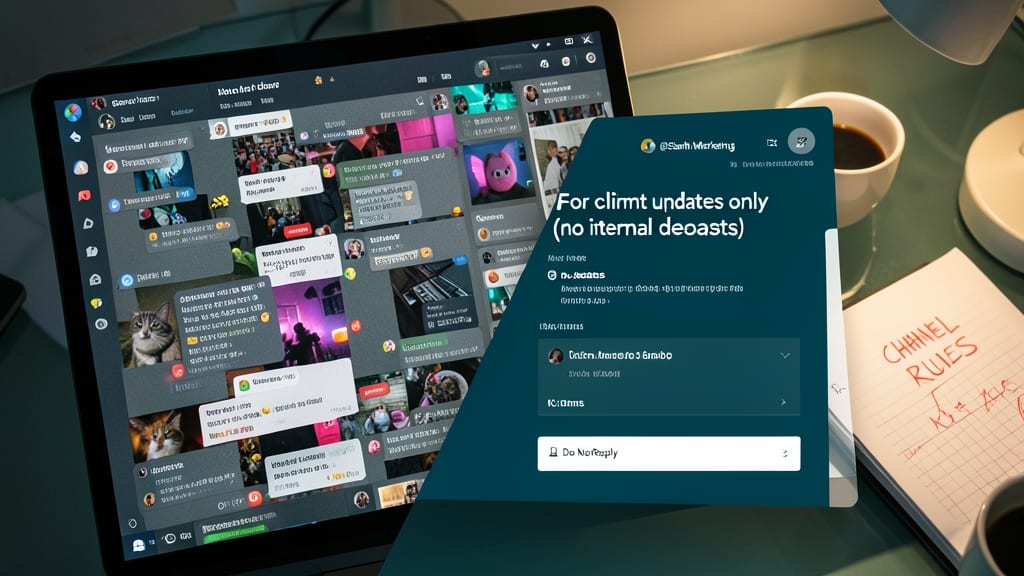
Cross-functional teams often drown in noise when everyone assumes a channel is for "general use." A clear channel description—including its purpose, owner, and posting rules—turns chaos into structure. For example, labeling a channel as "For client updates only (no internal debates)" instantly sets expectations.
Microsoft Teams lets you define three key elements in the channel description: the primary goal (e.g., "Project X documentation"), the owner(s) (e.g., "@Alex & @Taylor"), and posting guidelines (e.g., "Use threads for replies to avoid clutter"). This prevents off-topic threads and ensures accountability—critical when multiple teams share the same workspace.
Teams with overlapping roles (like marketing and sales) benefit most from this approach. A well-defined description acts as a silent guide, reducing the need for constant reminders and keeping discussions focused. ✨
Archive Inactive Channels Quarterly
Tired of scrolling through a cluttered Teams sidebar filled with channels from last year’s projects? Archiving inactive channels quarterly is the secret weapon to reclaim focus and storage—without losing critical data.
Microsoft Teams makes this effortless with a one-click archive feature, hiding completed projects while keeping all files and messages intact. Schedule a 30-minute cleanup session every quarter to archive channels tied to finished initiatives, and watch your team’s decision fatigue melt away. Plus, storage savings add up fast—each archived channel frees up space for active collaboration.
This strategy is perfect for agile teams or organizations with frequent project turnover, ensuring only relevant discussions stay front and center. 💪
Enable Channel Notifications for Critical Updates

Drowning in Teams notifications? Fine-tune your alert settings to focus only on what matters. By enabling @mentions only for non-urgent channels and custom keywords for critical updates, you’ll cut through the noise while ensuring key messages never slip through.
Start by adjusting channel notifications in Teams settings—choose 'Only @mentions' for casual discussions and 'All new content' for high-priority channels like #urgent-projects. For deeper control, use custom keywords (e.g., #action-required) to trigger alerts only for specific terms. This balances real-time communication with async workflows seamlessly.
This approach is perfect for hybrid teams juggling meetings, async updates, and deep work. No more context-switching—just the alerts that demand your attention. 💡
Use Channel Themes for Visual Hierarchy
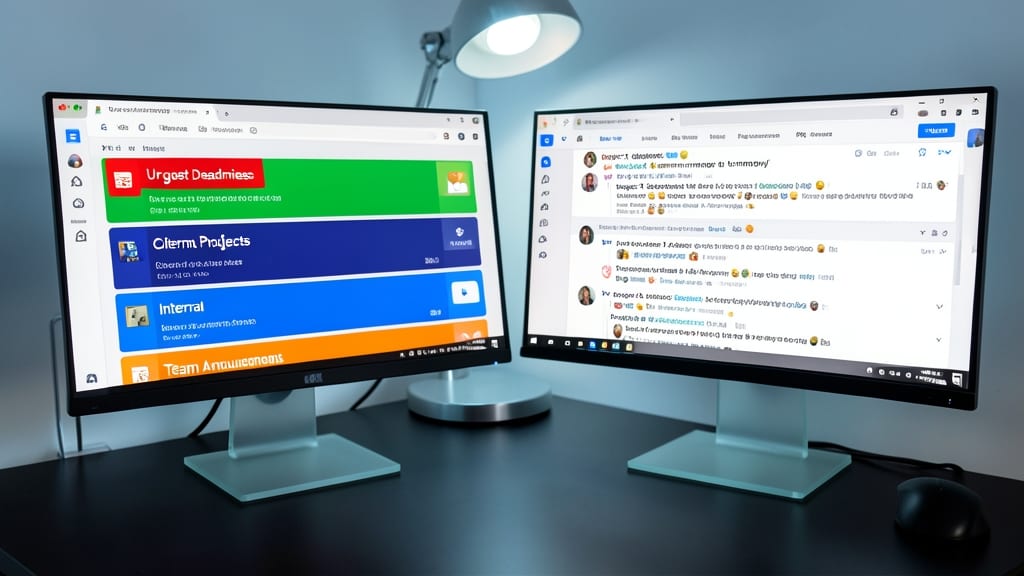
Tired of scrolling through channels only to miss critical updates buried in the noise? Channel themes in Microsoft Teams let you assign color-coded labels (like red for urgent deadlines or green for client projects) directly to your channels—turning visual cues into instant priority indicators.
This feature works by overlaying customizable color badges on channel icons, making it effortless to spot high-priority discussions at a glance. For example, mark your #support-critical channel in red and #marketing-campaigns in blue—no more guessing which conversations need immediate attention. Teams admins can even enforce consistent branding across departments, reinforcing workflows visually.
Perfect for customer support teams, project managers, or any group juggling multiple priorities—this small tweak cuts down on missed deadlines and keeps everyone aligned without extra meetings. ✨
Train Teams on Channel Etiquette
Even with perfect channel organization, noise and confusion can still creep in if your team doesn’t follow consistent communication rules. Establishing clear channel etiquette guidelines—like requiring replies to use threads instead of long messages—cuts down on clutter and keeps discussions focused.
Start by defining simple rules, such as "No long threads—use threads for replies" or "Tag relevant team members" to ensure accountability. Then, reinforce these rules with quarterly training sessions (even a 15-minute walkthrough helps). Microsoft Teams’ built-in threading feature and notification settings make it easy to enforce these habits without extra tools.
This approach works best for cross-functional teams or departments where communication styles vary—like marketing vs. engineering. Consistent training ensures everyone follows the same standards, reducing frustration and improving collaboration. ✨