
Coding
Mastering Excel’s text functions can turn messy data into clean, actionable insights. These 10 powerful functions—each explained with practical examples—will help you format, extract, and manipulate text like a spreadsheet expert.
Concatenate Function for Combining Text Strings
Tired of manually typing "Invoice #" before every number? The CONCATENATE function lets you merge text from multiple cells—like first names with last names or product codes with descriptions—into one clean output with just a formula.
Use =CONCATENATE(A2, " ", B2) to combine cells A2 and B2 with a space in between, or add static text like prefixes (=CONCATENATE("ID-", C2)). It’s perfect for creating standardized labels (e.g., "Q1-2024-Sales") or cleaning up messy data without copying and pasting. Works in Excel 2007 and later, with TEXTJOIN (Excel 2016+) offering a more flexible alternative.
Accountants formatting invoices, marketers building email lists, or anyone dealing with repetitive text entries will love this zero-config solution. ⚡
Text to Columns for Splitting Data
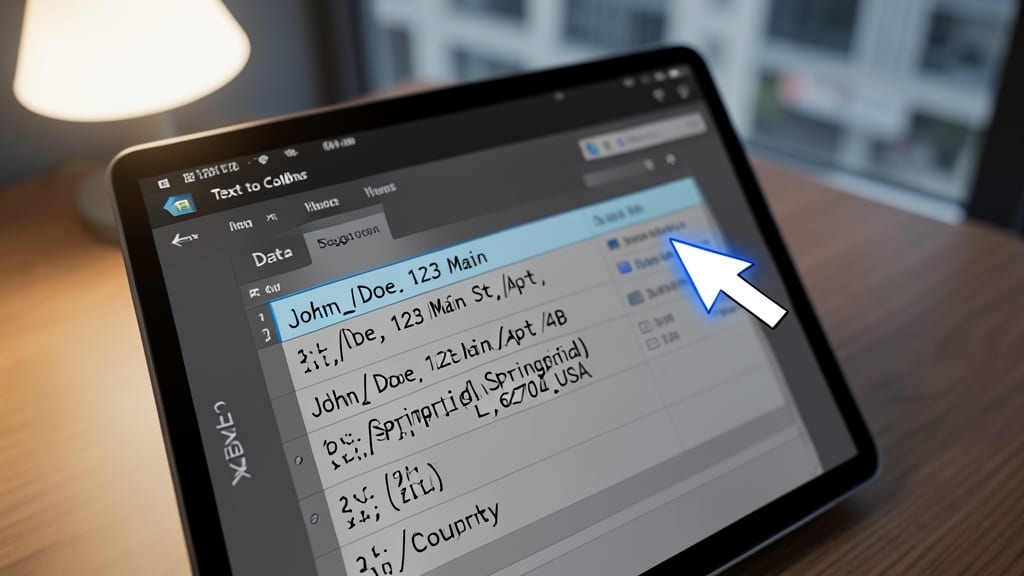
Staring at a single column packed with comma-separated values—like a CSV import dumping addresses into one messy cell? The Text to Columns tool is your lifesaver for instantly splitting data without manual copying. Whether you're separating first/last names, street/city/ZIP codes, or product codes from descriptions, this built-in wizard handles the heavy lifting with zero formulas.
Start by selecting your data, navigating to Data > Text to Columns, and choosing Delimited (for commas, tabs, or semicolons) or Fixed Width (for aligned columns). The preview step lets you verify splits before committing—critical for avoiding data corruption. Works seamlessly with Excel 2007 and later, and even handles irregular delimiters like semicolons in imported datasets. For advanced users, combine it with Power Query to automate recurring imports.
Perfect for data analysts cleaning up imports, HR teams parsing employee records, or small business owners organizing customer lists. No more squinting at merged cells or guessing where one field ends and another begins—just clean, structured data in seconds. ✨
LEFT, RIGHT, and MID Functions for Extracting Substrings

Need to pull just the ZIP code from a full address or extract a product code from a long SKU? The LEFT, RIGHT, and MID functions let you grab exact chunks of text without touching the original data. These are the Swiss Army knives of substring extraction—no need for manual copying or complex workarounds.
Use LEFT(A1,5) to snag the first 5 characters (like a ZIP code), RIGHT(A1,4) for the last 4 (e.g., a file extension), or MID(A1,7,3) to pull a 3-character segment starting at position 7. All three preserve your original data while creating clean, reusable outputs—perfect for cleaning up databases or parsing structured text.
Accountants standardizing invoice numbers, e-commerce teams pulling product IDs, or data analysts extracting email domains will find these functions indispensable. They’re the fastest way to turn messy text into structured, actionable data. ✨
UPPER, LOWER, and PROPER for Text Case Formatting

Tired of inconsistent capitalization ruining your reports? The UPPER, LOWER, and PROPER functions instantly standardize text—whether you need all names in title case or product codes in uppercase. These three functions act like a spellcheck for formatting, ensuring data looks polished and professional.
Use UPPER(A1) to convert text to all caps (great for acronyms or headers), LOWER(A1) for lowercase consistency (ideal for search-friendly URLs), or PROPER(A1) to auto-capitalize words (perfect for names and titles). They handle edge cases like apostrophes and hyphens automatically, so you don’t have to. Best of all, they work in bulk—apply to entire columns with a simple drag-and-drop.
Accountants standardizing financial reports, marketers cleaning up email lists, or anyone exporting data to other systems will love how these functions save time and reduce errors. Your data will always look its best—no manual tweaking required. ✨
SUBSTITUTE Function for Replacing Text

Struggling with inconsistent abbreviations, typos, or special characters ruining your datasets? The SUBSTITUTE function lets you replace specific text—like turning "Inc." into "Company" or removing "Temp" prefixes—across entire columns with a single formula. Unlike manual edits, it handles bulk replacements instantly, saving hours of tedious work.
Use =SUBSTITUTE(A1, "oldtext", "new_text") to swap text anywhere in a cell. For example, =SUBSTITUTE(B2, "Inc.", "Company") replaces all instances of "Inc." with "Company" in cell B2. It’s case-sensitive by default, but you can nest it with UPPER() or LOWER() for flexible matching. Works in Excel 2007 and later, making it a reliable tool for data cleanup.
Perfect for HR teams standardizing job titles, marketers fixing typos in email lists, or anyone managing large datasets. Your data will stay clean and consistent—no more copy-pasting fixes. ✨
TRIM Function for Cleaning Extra Spaces

Ever wasted hours manually cleaning up extra spaces in imported data? The TRIM function is your instant fix—designed to scrub away leading, trailing, and multiple spaces between words in a single step. Whether you’re dealing with CSV exports from databases or PDF-to-Excel conversions, this function restores alignment and readability without manual edits.
Simply enter =TRIM(A1) to clean the text in cell A1, and it’ll remove all unnecessary spaces while preserving single spaces between words. For example, " John Doe " becomes "John Doe". It even handles non-breaking spaces (common in web imports) that other functions might miss. Drag the formula down to clean entire columns effortlessly.
This is the go-to tool for data analysts, marketers, or anyone importing messy datasets. ⚡
FIND and SEARCH for Locating Text Positions

Tired of manually scanning cells for specific text like error codes or email domains? The FIND and SEARCH functions let you pinpoint exact locations of text within cells—no more guessing or hardcoding positions.
FIND returns the starting position of a substring (case-sensitive) while SEARCH ignores case and handles wildcards like asterisks (*). For example, =FIND("@", A1) locates the "@" in an email address, enabling dynamic extractions like =MID(A1, FIND("@", A1)+1, 4) to pull the domain. Both functions return #VALUE! if text isn’t found, so wrap them in IFERROR for safety.
Perfect for data analysts validating email formats, developers parsing log files, or anyone needing to trigger actions based on dynamic text patterns. ⚡
REPLACE Function for Swapping Characters or Words

Tired of manually updating placeholders or correcting batch errors in your datasets? The REPLACE function is your secret weapon for dynamic text swaps—think replacing "XXX" with real values, fixing "Old Co." to "New Corp.", or even cleaning up "Temp" prefixes in job titles.
With syntax like =REPLACE(text, startnum, numchars, newtext), you specify exactly where and what to replace. For example, =REPLACE(A1, 1, 4, "Employee") turns "Temp_John" into "EmployeeJohn" in one click. It’s case-sensitive by default, but you can nest it with UPPER() or LOWER() for flexible matching.
Perfect for data analysts updating legacy records, HR teams standardizing job titles, or anyone managing bulk text corrections. No more copy-pasting—just precise, automated replacements. ✨
TEXTJOIN for Combining Text with Delimiters

Tired of CONCATENATE failing when empty cells sneak into your data? TEXTJOIN is the modern upgrade that handles delimiters (like commas or semicolons) and skips blanks automatically—no extra IF statements needed.
Use it to merge lists (e.g., =TEXTJOIN(", ", TRUE, A2:A10) creates a comma-separated string from cells A2 to A10) or generate tags. The TRUE/FALSE switch lets you control whether to ignore empty cells, and it works across Excel 2019 and Office 365—no legacy workarounds required.
Perfect for marketers compiling keyword lists, developers parsing API responses, or anyone cleaning up messy datasets. ⚡
CHAR and CODE for ASCII Character Conversion

Debugging hidden characters or inserting non-printable symbols? The CHAR and CODE functions let you convert between ASCII codes and characters—perfect for advanced data cleanup or automation tasks.
Use CODE(A1) to extract the ASCII value of a character (e.g., CODE("A") returns 65), or CHAR(65) to generate the character from its code. This is especially useful for inserting line breaks (CHAR(10)), tabs (CHAR(9)), or special symbols like © (CHAR(169)) without manual typing.
Developers and data analysts will love this for batch processing or fixing corrupted text files. Try CHAR(10) to split text across lines in a single cell—no manual formatting needed! ✨