
Tip & Trick
Struggling to unlock SharePoint’s full potential? These eight beginner-friendly tips will transform you from overwhelmed newbie to confident collaborator in no time—without needing advanced technical skills.
Master the Quick Access Toolbar First
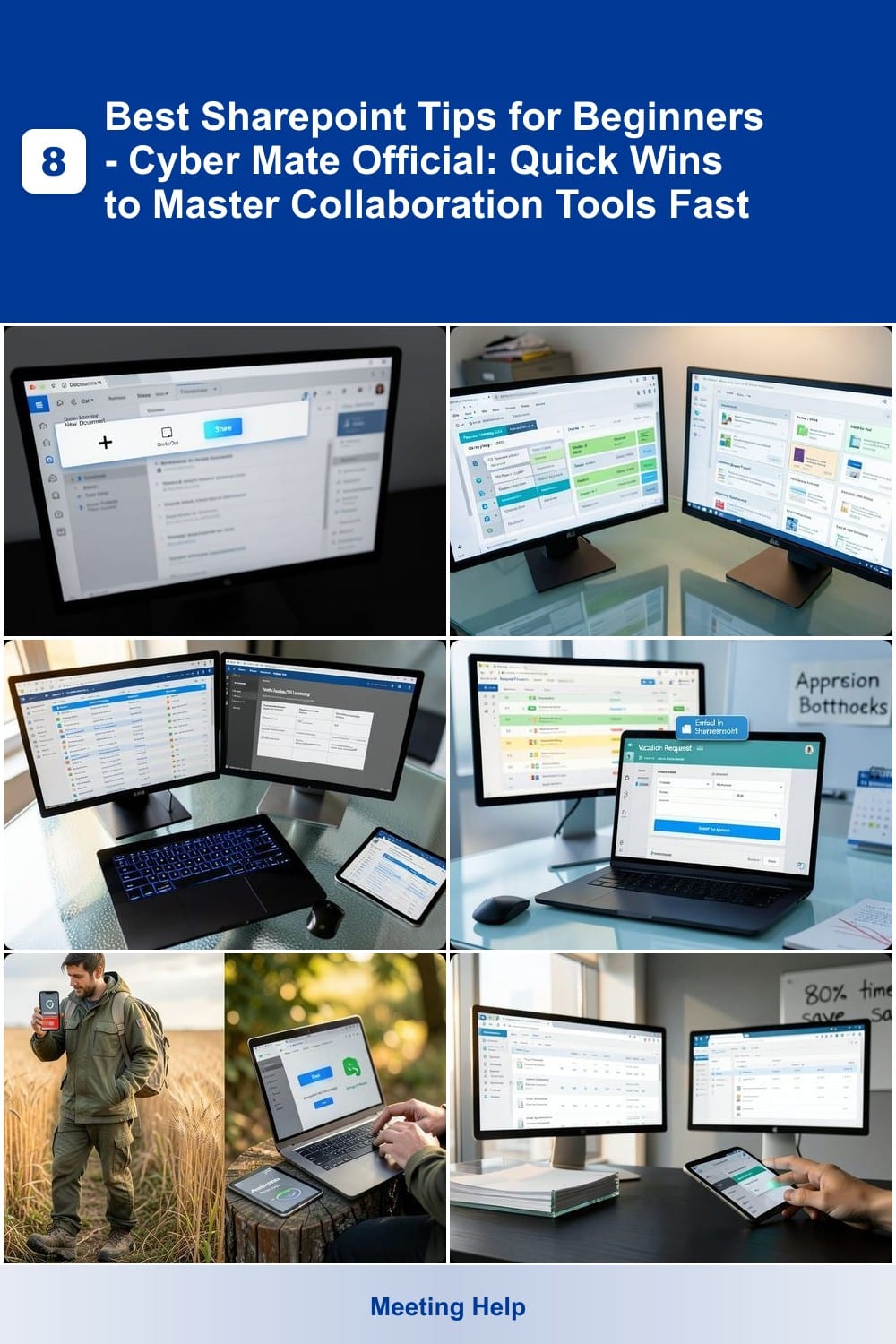
Tired of wasting time hunting through menus for the same commands every day? The Quick Access Toolbar in SharePoint is your secret weapon for speed—let’s show you how to make it work for you.
Start by pinning your most-used commands (like New Document, Share, or Check In/Out) to the toolbar. With just a click, you’ll skip the navigation hassle and shave off 10+ clicks per task. Pro tip: Use the search bar inside the toolbar to find commands faster than scrolling through the ribbon. For teams, this means less back-and-forth and more focus on actual work.
Perfect for project managers juggling approvals or marketing teams sharing assets—this tweak alone will make your SharePoint experience smoother. ⚡
Use Modern Document Libraries Properly
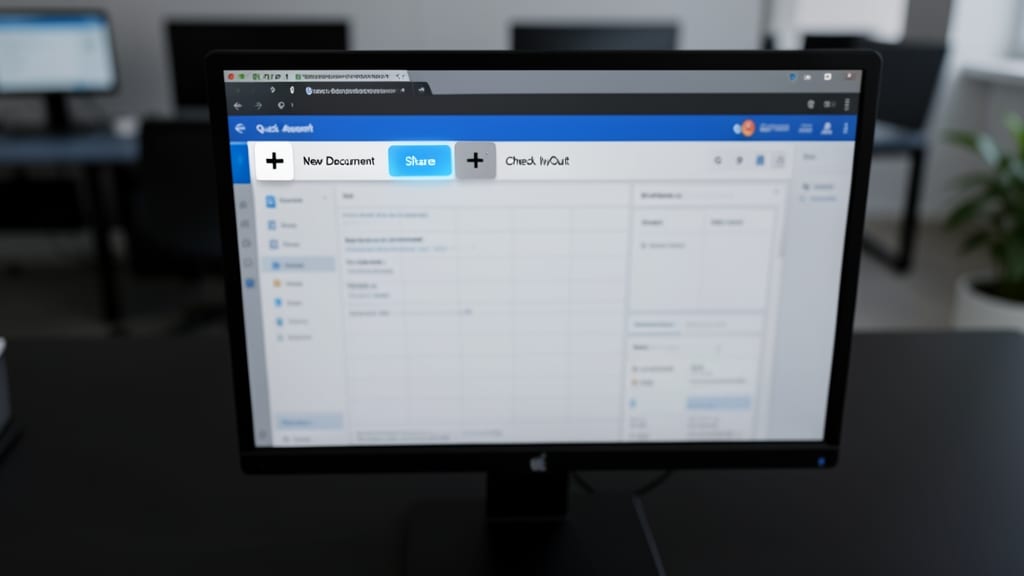
Tired of digging through endless folders to find that one document? SharePoint’s modern document libraries are designed to replace chaotic file dumps with smart organization—if you use them right.
Start by leveraging metadata columns (like "Project," "Status," or "Owner") to tag files instead of nesting them in folders. Enable versioning to track changes automatically, and use content approval to control who sees finalized documents. The built-in search and filter tools then let you find files in seconds by typing keywords or selecting tags.
This setup is a game-changer for marketing teams, project managers, or anyone juggling shared files. Teams using this method report 50% faster file retrieval and fewer "lost document" headaches. ✨
Leverage Powerful Search with Keywords
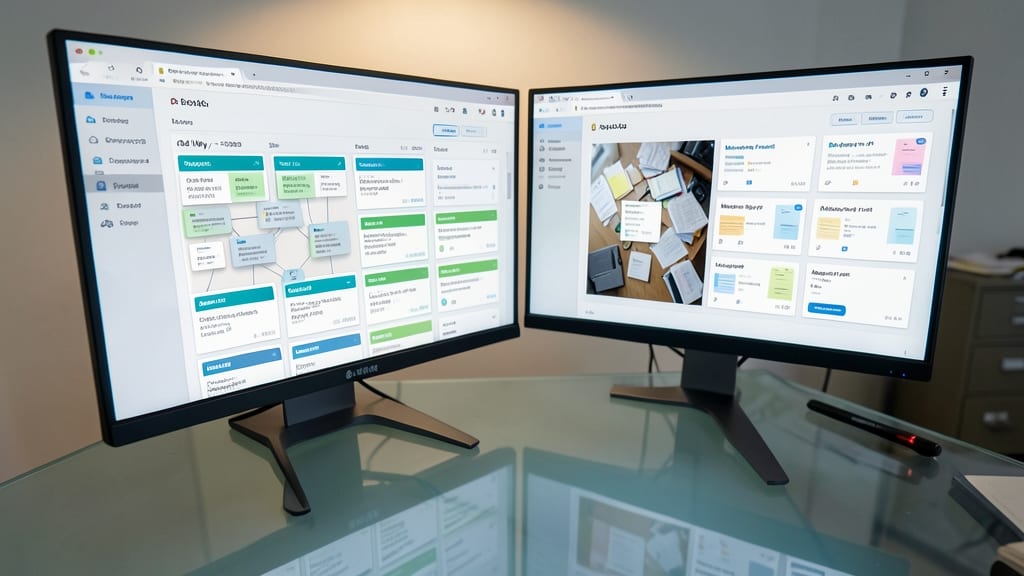
Tired of scrolling through endless SharePoint results when you just need that one report? Advanced search operators like contentclass: and path: can cut your search time by 70%—no admin rights required.
Use contentclass:STSListItem to pinpoint list items, or path:/sites/marketing to narrow searches to specific sites. Combine them (e.g., contentclass:STSListItem path:/sites/hr) for laser-focused results. Pro tip: Try fileextension:pdf to filter by file type instantly.
This is your secret weapon for project managers drowning in documents or HR teams hunting for approval forms. Master these, and you’ll reclaim hours weekly. ⚡
Automate Approvals with Microsoft Forms
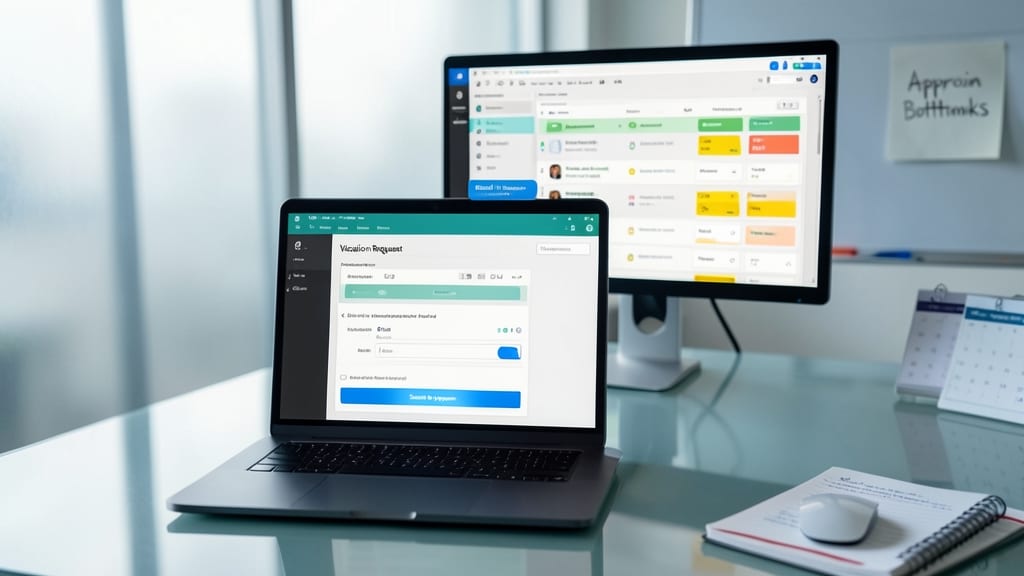
Tired of chasing down approvals via endless email chains? Microsoft Forms embedded in SharePoint lists lets you automate workflows—like expense requests or vacation approvals—with just a few clicks, cutting response times by up to 70%.
Start by creating a custom form in Microsoft Forms with approval fields (e.g., "Approve/Reject"), then embed it directly into your SharePoint list. Responses auto-populate the list, and you can set up conditional logic (e.g., "Only managers can approve"). The integration also tracks progress in real time, so everyone stays on the same page. No more lost emails or forgotten follow-ups!
This tip is a game-changer for HR teams managing onboarding, IT approving software requests, or project managers tracking task sign-offs. Say goodbye to manual tracking—your workflows will run smoother than ever. ✨
Sync SharePoint Libraries to Your PC

Tired of waiting for Wi-Fi to update files while you’re in the field? Syncing SharePoint libraries to OneDrive lets you work offline with real-time updates when you reconnect—no more dropped connections or last-minute edits.
Here’s how it works: Open your SharePoint library, click Sync in the top-right corner, and choose the folder location on your PC. Once synced, files appear in File Explorer with a sync status icon. Changes you make offline automatically upload when you’re back online, and you’ll even see others’ edits when you reconnect. This is a game-changer for construction teams, sales reps, or remote contractors who need access to the latest files without relying on spotty networks.
Best for anyone who spends time away from the office—whether it’s a weekend road trip or a multi-day field assignment. Your documents stay up-to-date without lifting a finger. ⚡
Create Reusable Content Types
Tired of recreating the same document structures across multiple SharePoint sites? Reusable content types let you define templates (like "Project Proposal" or "Vendor Contract") once, then apply them consistently across all your sites—cutting setup time by up to 80%.
In SharePoint, these templates enforce standardized sections (e.g., "Executive Summary," "Budget"), automatically adding columns like approval status or deadline dates to every document. You can even nest them hierarchically—like a "Marketing Campaign" content type containing sub-types for "Creative Brief" and "Budget Tracker." The best part? Changes propagate automatically, so updates to your template affect all linked documents instantly.
This is a game-changer for operations teams managing complex workflows or marketing teams with standardized proposal formats. Once configured, it’s a zero-effort way to maintain consistency across sites. ✨
Set Up Alerts for Critical Updates
Tired of refreshing your SharePoint site every 10 minutes to check for updates? Email alerts are your new best friend—set them up in just a few clicks to get instant notifications for document changes, approvals, or even new list items.
Navigate to your library or list, click the three dots (⋯) in the top menu, and select "Alert Me" to customize triggers like item creation, edits, or approval statuses. You’ll receive emails directly to your inbox, so you never miss critical updates—whether it’s a client proposal revision or a new task assigned to your team.
Perfect for project managers, legal teams, or anyone managing time-sensitive documents, this feature cuts down on manual checks and keeps everyone aligned without extra effort. ✨
Use SharePoint Mobile App for On-the-Go Access

If you’re constantly on the move but still need to access critical documents, the SharePoint mobile app is your secret weapon. Whether you're in a client meeting, traveling, or working remotely, this app lets you view, edit, and share files from anywhere—no desktop required.
The app supports offline mode, so you can download files for review and sync changes later. With real-time collaboration features, multiple users can edit the same document simultaneously, and notifications keep you updated on changes. Plus, it integrates seamlessly with Microsoft 365 apps like Word and Excel for instant editing.
This is a game-changer for sales teams, executives, and field workers who need to stay productive outside the office. No more waiting to get back to your desk—your SharePoint files are always at your fingertips. ✨