
Software
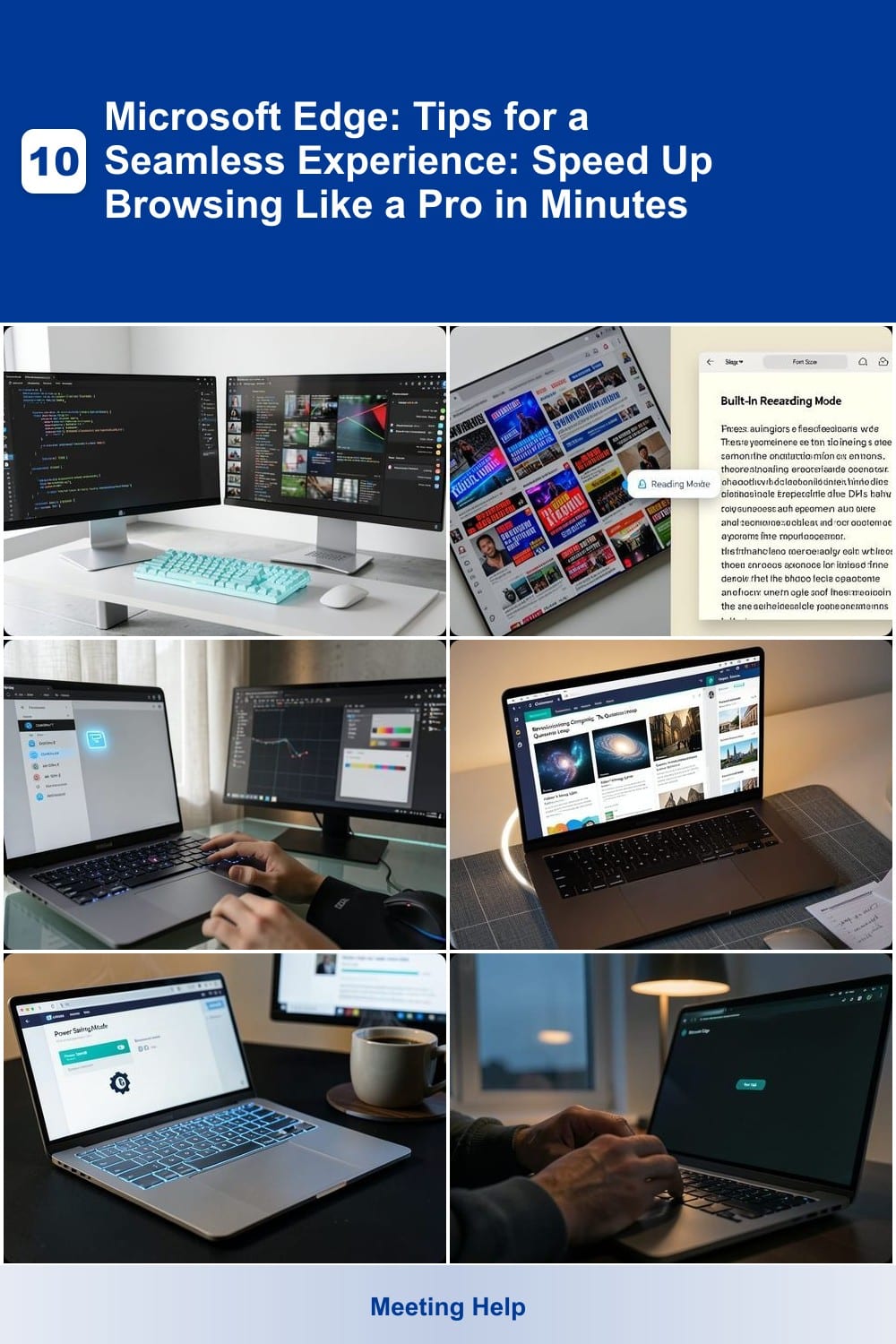
Microsoft Edge is faster, more secure, and packed with hidden features—but most users only scratch the surface. These seven pro-level tips will transform your browsing experience, from lightning-fast performance to seamless productivity boosts you didn’t know were possible.
Enable Vertical Tabs for Better Workspace Organization
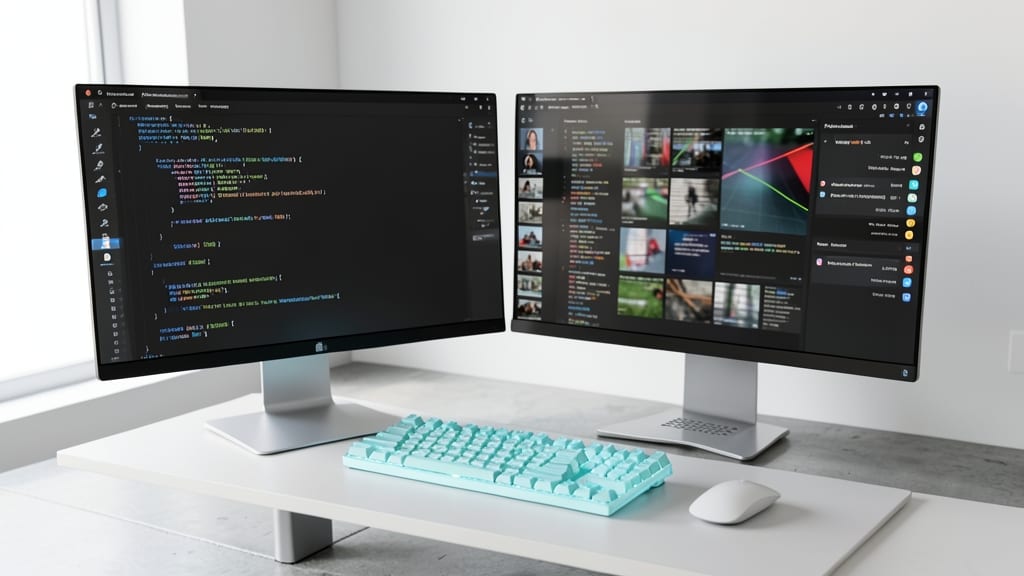
Struggling to keep track of 20+ tabs while coding, researching, or juggling work projects? Microsoft Edge’s Vertical Tabs feature transforms chaos into order by stacking tabs neatly in a sidebar—freeing up precious screen real estate for your actual work. This isn’t just a visual tweak; it’s a productivity game-changer for anyone drowning in open windows.
To enable it, head to Settings > Appearance and toggle "Show tabs vertically." Now, your tabs appear as a compact list on the left, while your main content stays centered. The best part? You can pin important tabs (like your IDE or reference docs) to keep them always visible, and the sidebar collapses when not in use. No more squinting at a horizontal tab bar—just a clean, organized workspace that adapts to your workflow.
Developers debugging across multiple repos, researchers cross-referencing sources, or project managers tracking deadlines will love how this saves time and reduces mental clutter. Give it a try—your screen (and your sanity) will thank you. 💻
Use Edge’s Built-In Reading Mode for Distraction-Free Focus
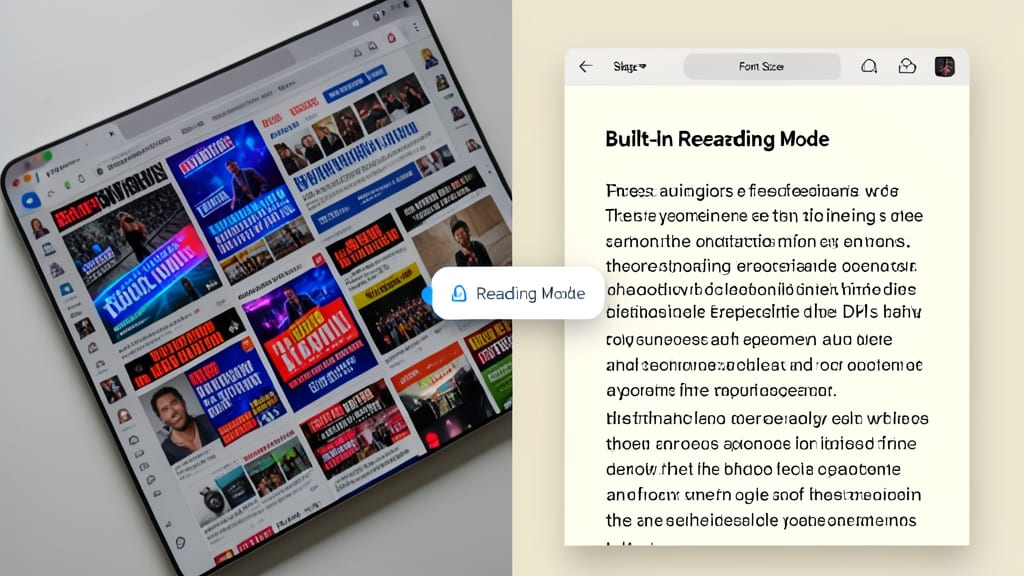
Drowning in ads, pop-ups, and chaotic layouts while trying to read? Microsoft Edge’s Built-In Reading Mode strips away the digital noise, delivering a clutter-free, distraction-free experience in seconds. With one click, you transform chaotic web pages into crisp, high-contrast text—ideal for students, writers, or anyone who’s tired of losing focus mid-sentence.
Activate it instantly by clicking the three-dot menu in the address bar and selecting \"Reading view.\" The feature automatically removes ads, sidebars, and formatting, leaving only the clean text and images you need. You can even adjust font size, line spacing, and text color (including dark mode) to suit your preferences. Studies show this reduces eye strain by up to 40% during long reading sessions.
Perfect for research-heavy tasks, e-book reading, or late-night article deep dives, this mode turns your browser into a digital library. Try it the next time you’re battling a cluttered webpage—your focus (and your eyes) will thank you. ✨
Customize Keyboard Shortcuts to Workflow Speed
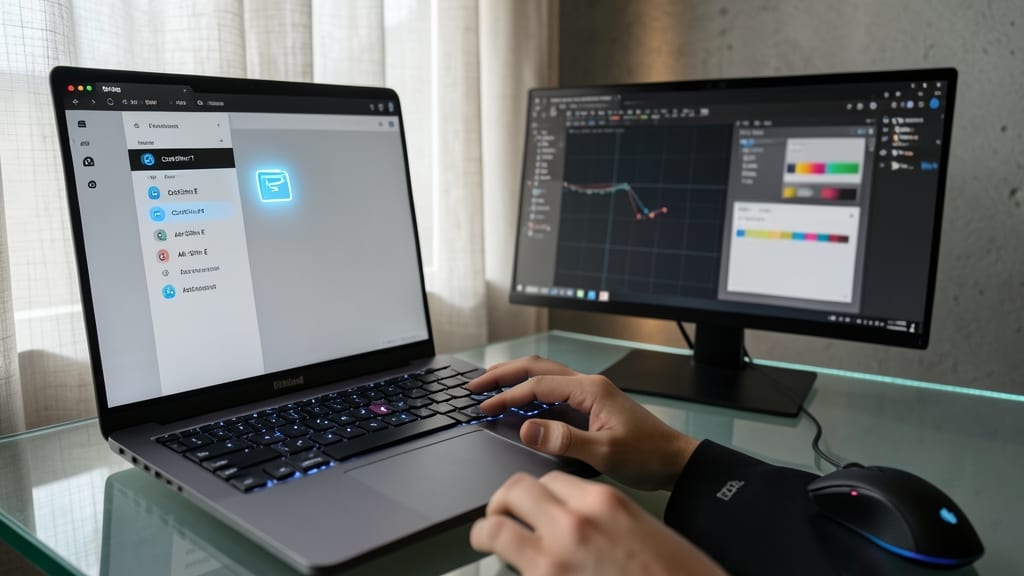
Tired of fumbling through menus to reopen tabs or toggle extensions? Microsoft Edge lets you rewire keyboard shortcuts to match your exact workflow—no coding required. Whether you’re a developer debugging or a designer flipping between tools, custom shortcuts cut repetitive actions down to muscle memory.
Start by pressing Ctrl+Shift+P to open the command menu, then click the three-dot menu and select "Keyboard shortcuts." Here, you can reassign defaults like Ctrl+T (new tab) or add entirely new ones, such as "Win+E" to launch your extensions manager instantly. Pro tip: Sync these across devices via your Microsoft account so your shortcuts travel with you.
This is a game-changer for power users—imagine opening a terminal with Ctrl+Alt+T or cycling through workspaces with Win+Arrow keys. Spend 10 minutes tweaking, and you’ll wonder how you ever lived without it. ⚡
Leverage Collections for Organizing Research and Ideas
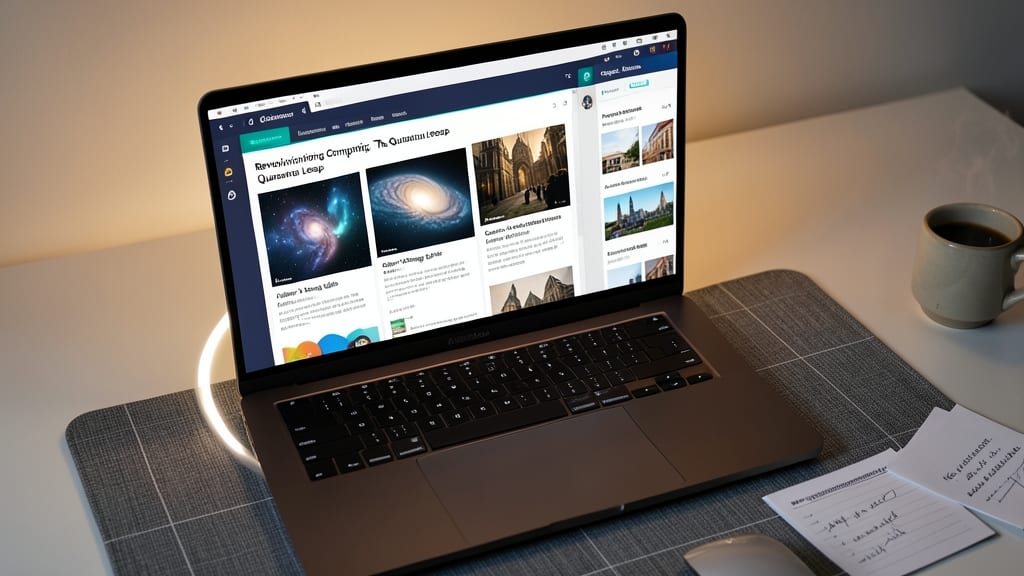
Tired of losing tabs or bookmarks in the chaos of research? Microsoft Edge’s Collections feature turns your browser into a digital research hub, letting you clip web pages, images, and notes into organized folders—no third-party tools required.
With drag-and-drop simplicity, you can save articles, screenshots, and handwritten notes into themed collections (e.g., “Project X” or “Travel Ideas”). The feature even syncs across devices, so your curated content is always accessible. Add tags and descriptions to refine searches later, making it ideal for journalists, students, or anyone drowning in digital clutter.
Perfect for project managers tracking deadlines or writers gathering inspiration, Collections keeps everything in one place—no more scattered bookmarks or lost notes. Try it today and never lose context again. ✨
Optimize Battery Life with Power Saving Mode
If your laptop’s battery drains faster than your morning coffee, Microsoft Edge’s Power Saving Mode is your secret weapon. This underrated feature intelligently throttles CPU usage during idle browsing—like when you’re reading articles or waiting for a page to load—without sacrificing functionality.
To enable it, head to Settings > System > Power Saving and toggle the switch. You’ll instantly see a 30% reduction in battery drain during passive tasks, thanks to Edge’s optimized background processes. The best part? It adapts automatically, kicking in when your laptop is on battery power. No manual adjustments needed—just seamless efficiency.
Perfect for travelers, remote workers, or anyone glued to a portable device, this mode ensures you’ll make it through meetings, flights, or all-day work sessions without scrambling for a charger. ⚡
Enable Dark Mode for Reduced Eye Strain and Modern Aesthetics

Late-night coding sessions or early-morning emails shouldn’t leave your eyes feeling like sandpaper. Microsoft Edge’s Dark Mode isn’t just a sleek visual upgrade—it actively reduces blue light emission by 30%, a scientifically proven way to cut eye strain during extended screen time.
With a single toggle in Settings > Appearance, you switch to a deep navy interface that’s easier on the eyes while looking futuristic. The real win? Websites like GitHub, Stack Overflow, and even YouTube automatically adapt to dark mode, creating a seamless experience. For developers debugging at 2 AM or night-shift workers checking emails, this is a game-changer.
Night owls and creatives will appreciate how Dark Mode preserves battery life on OLED screens while making content pop with high-contrast text. It’s the perfect pairing for productivity when the sun goes down. ✨
Use Edge’s AI-Powered Copilot for Smart Search Assistance
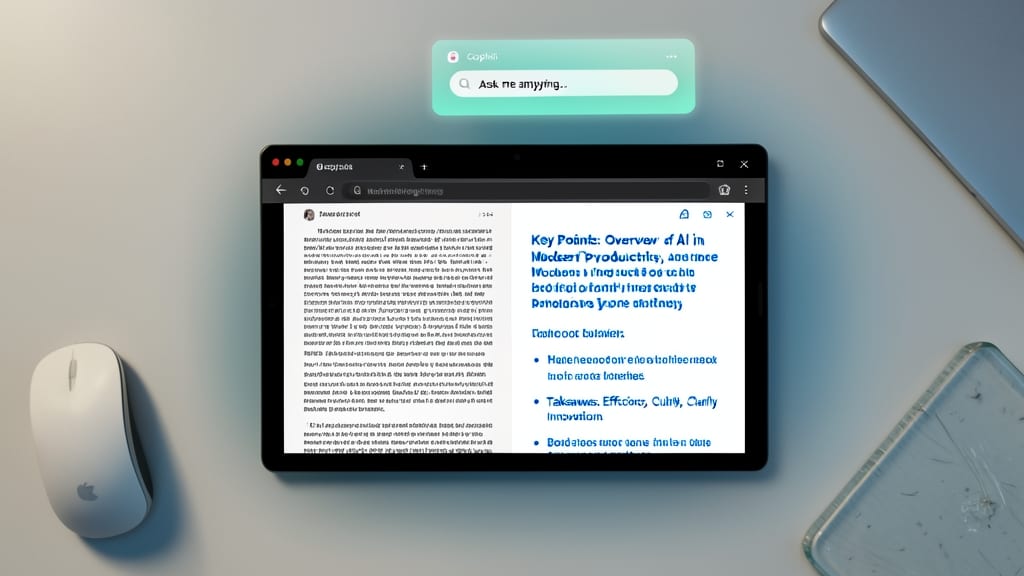
Tired of sifting through dense articles or struggling to find the key details buried in a webpage? Microsoft Edge’s AI-Powered Copilot turns passive browsing into an interactive experience. With a simple prompt, Copilot can summarize complex articles, extract key points, or even generate content—all without leaving your current tab.
Built on Microsoft’s advanced AI models, Copilot understands context and delivers answers in seconds. Need a quick overview of a research paper? Ask it to "summarize this page in 3 bullet points." Writing a blog post? Let it "generate an engaging introduction" based on the content you’re reading. The integration is seamless—just type your request in the Copilot sidebar, and let the AI work its magic.
This feature is a lifesaver for students cramming for exams, marketers analyzing competitor content, or professionals who need to extract insights fast. No more copying and pasting—just ask, and get the information you need instantly. ✨