Software
Microsoft Teams is now making reminders more accessible than ever by integrating them directly into the menu. This update simplifies task management, ensuring deadlines and follow-ups stay top of mind. Here’s how to leverage these new features to automate workflow notifications and boost productivity across your team.
Setting Up Personal Reminders in Teams
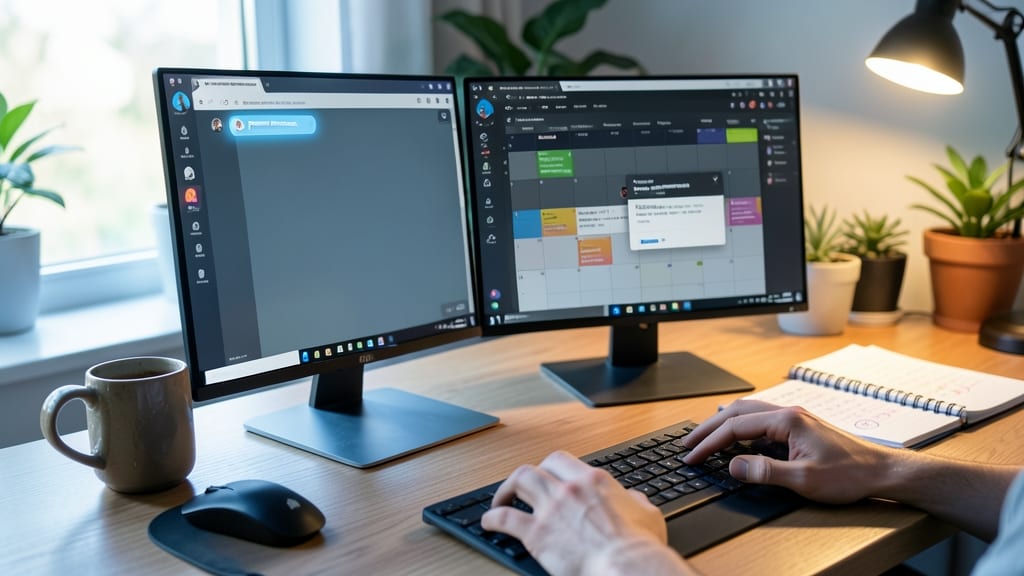
Freelancers and remote workers juggling multiple projects now have a built-in assistant in Microsoft Teams—personal reminders that keep deadlines front and center without cluttering your inbox. This feature transforms Teams from a collaboration hub into your personal productivity powerhouse, especially when you’re flying solo without a dedicated assistant.
To get started, open the Reminders tab in Teams (desktop or web) and click New Reminder. Add your task, set a date/time, and choose between desktop alerts, email notifications, or chat pop-ups. For extra organization, use labels (e.g., "Client Work," "Bills") to categorize tasks visually. The system even lets you recur reminders (e.g., weekly reports) or attach files (like contracts or drafts) directly to the reminder for quick access.
This is your secret weapon for freelancers managing invoices and deadlines, remote workers balancing client calls, or anyone drowning in personal and professional tasks. No more sticky notes or scattered tabs—just a clean, centralized system that works alongside your workflow. ✨
Creating Team-Wide Deadline Alerts
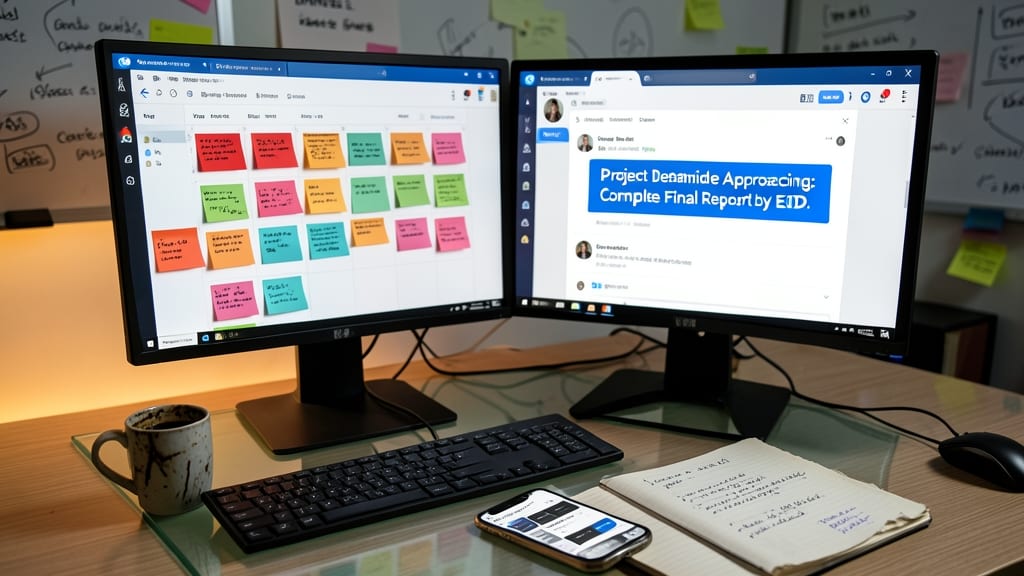
Project managers drowning in cross-functional chaos have a new lifeline: team-wide deadline alerts in Microsoft Teams. Unlike personal reminders, these notifications cut through the noise by posting directly to shared channels, ensuring every stakeholder—from devs to marketers—sees critical milestones in one place.
To set one up, open the Reminders tab in Teams, click New Reminder, then select Team Channel as the notification destination. Add a countdown timer (e.g., "Project X launch in 7 days") and tag relevant team members with @mentions. The system will automatically post updates to the channel feed, complete with real-time progress tracking and reply threads for quick clarifications. For extra visibility, enable urgency levels (Low/Medium/High) to prioritize alerts based on project phase.
This feature is a game-saver for Agile teams, product launches, or quarterly reviews—where alignment across departments makes or breaks success. No more missed deadlines buried in DMs or forgotten in personal inboxes. ✨
Linking Reminders to Outlook Calendar
If you’re juggling Outlook Calendar and Microsoft Teams like a pro, this integration is your productivity lifesaver. The new Reminders-to-Outlook sync ensures no meeting or deadline slips through the cracks by automatically adding Teams reminders to your calendar—no manual entry required.
To enable it, open Teams, go to Reminders, select a reminder, and click Link to Outlook. Your reminder’s time, title, and even location (if included) will sync instantly. The feature works in real-time, so edits in Teams update your Outlook calendar automatically. For professionals who rely on both tools, this eliminates the hassle of double-checking schedules.
This is a game-changer for sales teams, executives, or anyone who splits time between Teams chats and Outlook meetings. No more missed deadlines or double-bookings—just seamless, automated coordination. ✨
Automating Follow-Up Reminders for Meetings
Sales teams and client managers know the frustration of post-meeting follow-ups slipping through the cracks. Microsoft Teams now lets you automate follow-up reminders directly from meeting recaps—no extra apps needed. Just assign action items during the call, and Teams will prompt you to schedule reminders for both you and your team.
Set a reminder for specific dates or time-based follow-ups (e.g., "Check in with Client X in 3 days") and customize notifications to appear in chats, emails, or even as desktop alerts. The system also lets you tag team members in reminders, ensuring accountability without manual nudges. Best of all, these reminders sync with your Teams calendar and Outlook for full visibility.
This is a lifesaver for sales reps closing deals or client managers juggling multiple relationships—no more missed opportunities because a task got buried. ⚡
Customizing Reminder Notifications for Teams
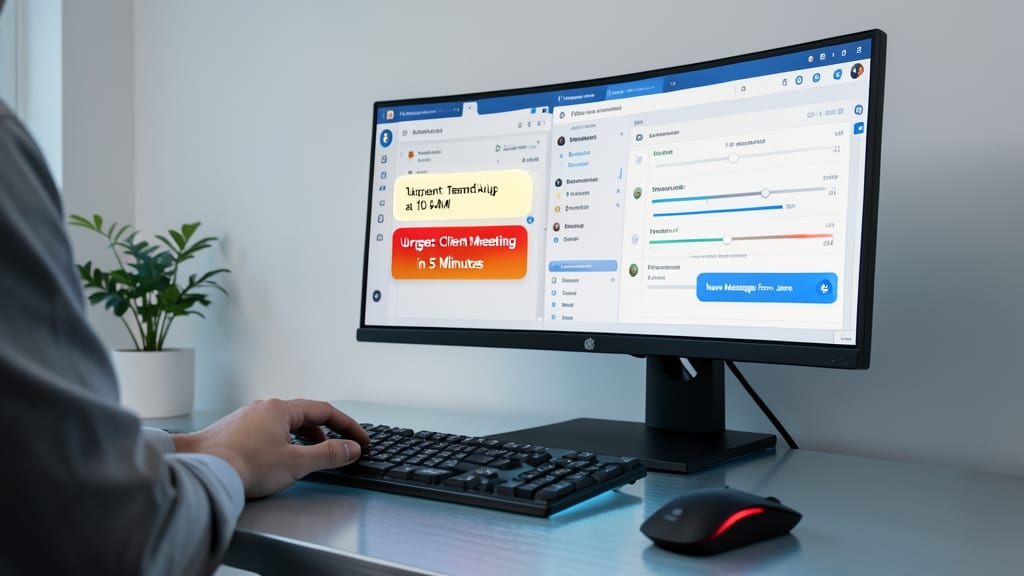
Not all reminders are created equal—and neither should their notifications be. With Teams’ new customization options, you can now adjust alert styles, urgency levels, and delivery methods to match your team’s unique workflows.
Assign high-priority alerts with flashing pop-ups and persistent notifications for legal or compliance deadlines, while creative teams can opt for subtle nudges with soft chimes and minimal disruptions. You can even set department-specific templates (e.g., "Urgent" for finance, "Low-Pressure" for brainstorming sessions) to streamline communication. The three-tier urgency system (Low/Medium/High) ensures critical tasks cut through the noise without overwhelming casual updates.
This feature is a game-changer for hybrid teams where different departments thrive on distinct communication styles. Legal teams stay compliant, creatives stay inspired, and managers maintain control—all without clashing alerts. ✨
Using Reminders to Track Project Milestones
Agile teams juggling sprints and deliverables will love how Teams reminders can turn sprawling projects into clear, actionable phases. Instead of drowning in a single monolithic deadline, break your workflow into milestone-based reminders—each tied to a specific deliverable like "Design mockups due" or "QA testing complete."
Set up recurring or one-time reminders directly in Teams channels, and link them to Planner tasks or To Do lists for full visibility. The system automatically nudges your team when a phase is complete, ensuring no step gets overlooked. For extra clarity, use color-coded labels (e.g., red for blockers, green for on-track) to match your project’s priority levels.
This setup is a game-changer for product managers, dev leads, or scrum masters—turning chaotic timelines into structured, collaborative checkpoints. ⚡
Setting Recurring Reminders for Routine Tasks
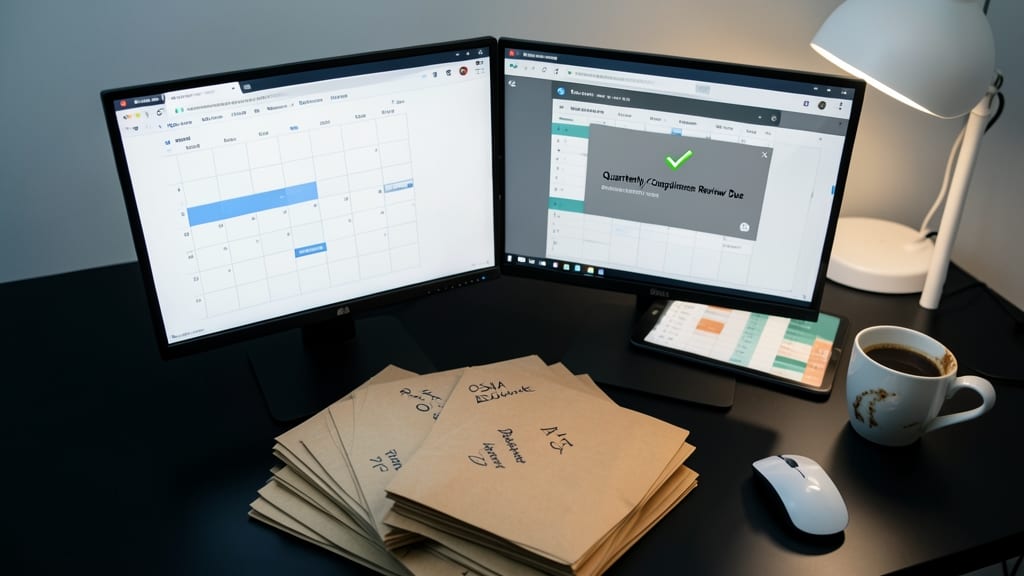
For HR and operations teams drowning in repetitive tasks like payroll processing or compliance deadlines, recurring reminders in Teams are a game-changer. Instead of manually tracking monthly or quarterly tasks, you can automate them with just a few clicks—eliminating the risk of missed deadlines or human error.
To set up a recurring reminder, open the Reminders tab in Teams, click "New Reminder", and select the "Repeat" option. Choose from daily, weekly, or custom intervals, then set an end date if needed. Teams will handle the rest, sending alerts right to your feed or channel—no extra tools required. For added precision, link reminders to specific channels so your entire team stays on the same page.
This feature is a lifesaver for departments where consistency matters most, like payroll or regulatory filings. With zero-config automation, you’ll free up mental space for higher-priority work. ✨
Integrating Reminders with Third-Party Apps
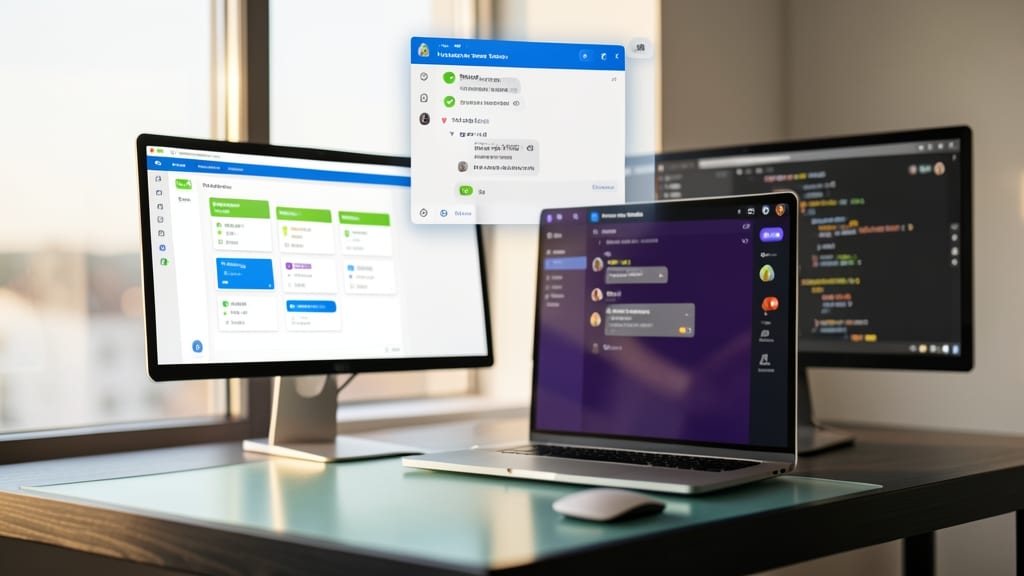
If your team juggles Trello boards, Slack channels, and Teams chats, you can finally merge them all—without context-switching. Microsoft’s new third-party app integrations let you sync reminders directly to tools like Trello, Slack, or even GitHub, so deadlines trigger across your entire workflow ecosystem.
To get started, navigate to the Reminders tab in Teams, then select "Connect App" to link your preferred platform. Once synced, a reminder set in Teams will automatically post in Slack or update a Trello card—complete with due dates and priority flags. For dev teams, this means GitHub issues can now include Teams reminder alerts, while marketing teams can tie Slack updates to campaign deadlines.
This is a game-changer for cross-platform teams—whether you’re a dev ops group managing sprints or a sales team tracking client follow-ups. No more manual updates or missed notifications. ✨
Mobile Teams Reminders for On-the-Go Teams

For sales reps on the road or field teams juggling client meetings and deadlines, the Teams mobile app is a game-changer. No Wi-Fi? No problem—reminders sync seamlessly when you reconnect, ensuring critical tasks stay visible even in offline mode.
With the mobile app, you can set location-based reminders (e.g., "Notify me when I arrive at the client’s office") or schedule one-tap alerts for calls, follow-ups, or inventory checks. The dark mode and compact interface make it easy to glance at reminders during quick breaks, while push notifications ensure you never miss a priority task.
Perfect for sales teams, service technicians, or event coordinators, this feature turns your phone into a portable command center—no desktop required. ✨
Troubleshooting Common Reminder Issues
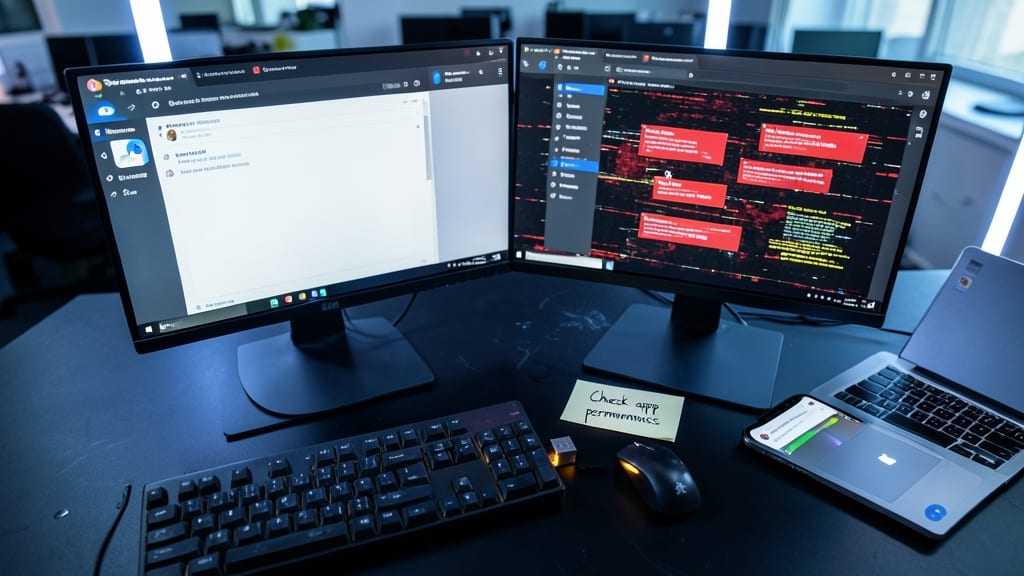
Even with Teams reminders streamlined into the menu, IT admins and power users still face hiccups—like missed alerts or sync errors that disrupt workflows. These issues often stem from app permissions, outdated clients, or conflicting notifications, but they’re fixable with targeted troubleshooting.
Start by ensuring your Teams app is updated to the latest version (check under Help > About). For permission errors, verify your account has full access to reminders in the Teams admin center. If alerts vanish, check your notification settings (gear icon > Notifications) and enable Reminders under Priority. For sync problems, clear the Teams cache via the desktop app’s Settings > Advanced > Clear cache.
This deep-dive guide ensures your reminders stay reliable—ideal for IT teams managing large deployments or power users who rely on seamless automation. 💪